

Quick answer
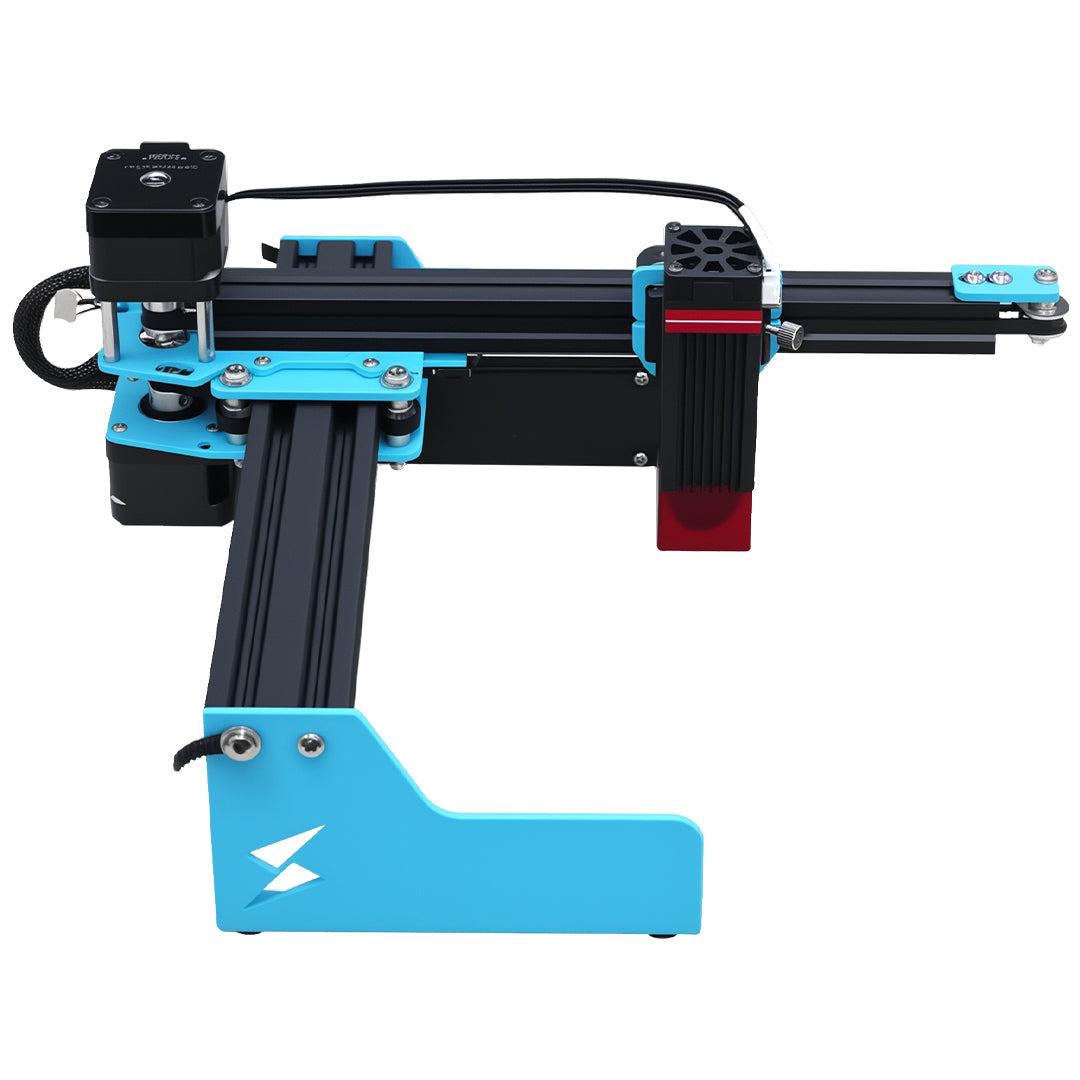
Tyvok P2 Ultra is designed as a desktop 20W 1064nm fiber galvo laser engraver for metal-first workflows. The setup process moves from unboxing to a controlled first mark: assemble the marking station, connect the machine, open TyvokWorks on Windows, preview the job with red light, focus, and run a test mark on a sample metal piece.
P2 Ultra is an industrial-style metal marking workflow made easier for daily small-business use.
Who this setup workflow is for
This guide is for small workshops, custom gift sellers, jewelry personalization studios, repair shops, service bureaus, and light manufacturing teams that need repeatable metal marking without building a factory line.
Typical first jobs include:
- Stainless steel test plates
- Metal business cards
- Jewelry tags and pendants
- Tool labels
- Serial plates
- Small fixture-based batches
Before you start
Prepare a stable workbench, a Windows computer for TyvokWorks, the power and connection cables, sample metal blanks, and the accessories included with the machine. Keep the first test job simple: a logo, short text, or a basic alignment file is enough.
Do not start with a paid customer order. First confirm placement, focus, contrast, and repeatability on sample material.
1. Assemble the marking station
Place the machine on a stable desktop surface and confirm the base is flat before running any job. A fiber galvo workflow depends on consistent part placement, so the machine should not sit on an unstable table, soft mat, or moving surface.
Setup goals:
- Machine sits flat on the bench
- Column and head are fixed securely
- Work area is clear
- Sample material is stable
- Rotary or fixture accessories are added only after the basic workflow is confirmed
2. Connect TyvokWorks
TyvokWorks is the desktop software workflow for P2 Ultra. Windows is supported today, and Mac support is planned for a future release.
The first software check should confirm:
- Device connection
- File import
- Job preview
- Parameter access
- Red-light preview behavior
3. Use red-light preview before engraving
Red-light positioning helps the user see where the mark will land before firing the laser. This is the practical bridge between industrial fiber laser marking and daily usability.
For first setup, use red-light preview to confirm:
- The part is inside the marking area
- The design is positioned correctly
- The mark does not cross an edge, hole, or fixture
- The user understands how the preview relates to the final engraving position
4. Focus before firing
Focusing is part of the normal metal marking workflow. Preview the position, focus the beam, then engrave. The goal is to reduce wasted parts before the job starts.
5. Run the first metal test mark
Use a test plate or sample blank. Start with simple artwork and inspect the result under normal lighting. The buyer should check clarity, placement, contrast, and whether the result matches the intended product.
Good first tests:
- Small logo
- Text label
- QR-style layout
- Serial number format
- Border or alignment mark
6. Save the workflow for repeat jobs
P2 Ultra works best as a repeatable production station. After the first successful mark, save artwork, placement logic, material notes, and settings direction for future orders.
Setup is not only about making one mark. It is about creating a workflow the buyer can repeat.
Workspace setup
Use a clean, stable workbench where the machine, computer, sample material, and inspection area are easy to reach.
Bench layout:
- P2 Ultra on a stable desktop surface
- Windows laptop or desktop computer nearby
- Sample metal blanks within reach
- Rotary or fixture accessories placed beside the machine only if relevant
- Clear space around the marking area
- Finished sample area for inspection
Keep the station clear enough for repeat work, sample inspection, and safe daily operation.
First-hour checklist
Use this checklist before running the first serious job:
- Confirm machine is stable on the bench
- Connect power and data cable
- Open TyvokWorks on Windows
- Confirm device connection
- Import a simple test file
- Place a sample metal blank
- Preview with red light
- Focus
- Run a low-risk test mark
- Inspect placement, readability, and contrast
- Save successful notes for repeat use
What not to do during setup
This section is useful because it reduces support burden and builds trust.
Do not:
- Start with an expensive customer item
- Skip preview and focus steps
- Place the machine on an unstable surface
- Assume one material setting fits every metal finish
- Publish Mac support as current before confirmed
- Treat rotary or conveyor workflows as required for the first test
Related P2 Ultra guides
After setup, read how to use Tyvok P2 Ultra for metal engraving. For business workflows, continue with
batch metal engraving for small business and jewelry laser engraving.FAQ
How long does P2 Ultra setup take?
Setup time depends on the buyer's workspace, computer, and accessories. The practical goal is to complete the machine connection, software check, red-light preview, focusing, and a simple first test before running real customer work.
Does TyvokWorks support Mac?
TyvokWorks supports Windows today. Mac support is planned for a future release.
Do I need industrial laser experience?
P2 Ultra is an industrial-style fiber galvo workflow made more approachable for desktop use. Buyers should still learn positioning, focusing, material testing, and safe operation before running paid orders.
What should I engrave first?
Start with a simple sample plate, metal card, or tag. Avoid complex customer artwork until placement, focus, and contrast are predictable.
Can I use rotary or conveyor workflows during first setup?
Start with the basic flat-material workflow first. Add compatible rotary or conveyor-style accessories only after the machine connection, red-light preview, focusing, and first test mark are stable.
Next step
Set up P2 Ultra as a repeatable metal marking station, then run a sample job before scaling into daily orders.
View the P2 Ultra product page, request a sample job, or check the launch offer.Related TYVOK P2 Buying Resources
Use these TYVOK resources to compare machine fit, project workflow, and buying options before choosing a laser engraver.