

When a pasted vector logo has broken details, compare it with a saved file imported through the receiving program's supported route. If the saved import is intact, investigate the transfer path before changing engraving settings or simplifying the original drawing.

A September Illustrator-to-LightBurn report describes precisely this difference: clipboard transfer damaged small details while ordinary import looked correct. The author suspected a connection with dense artwork, but the discussion did not establish node count as the cause. Treat it as a comparison to perform, not a diagnosis for every file.
Keep a reference that cannot silently change
Save the editable original, then create a separate transfer copy. Record the artwork's intended width and height. Choose three locations with tight geometry, such as a small letter counter, a sharp corner and a narrow gap. Use the same locations when comparing the source, pasted version and imported version.
Avoid comparing a heavily zoomed source with a full-page destination view. Match the visual scale as closely as possible and examine the paths, not just the screen's antialiased edges. A screenshot can document the failure, but it is not a replacement for the vector master.
A transfer-path comparison
| Version | What to inspect | What the result tells you |
|---|---|---|
| Editable source | Three chosen details and dimensions | Establishes the intended geometry |
| Clipboard result | Breaks, displaced nodes or missing features | Reveals what changed through that route |
| Supported saved-file import | The identical details at the same size | Tests whether a different transfer preserves them |
| P2 delivery copy | Visible content and final bounds | Checks the next software handoff separately |
If only the clipboard version fails, preserve the successful import and use it for the next proof. If both versions differ from the source, inspect export compatibility and collect the source file, exported file and software versions for support. Do not describe a successful import as proof that the physical mark will be correct.
Distinguish vector damage from image trouble
A missing placed photo may be an external linked-image problem. An intact but unnecessarily huge raster logo instead calls for checking its pixel dimensions. Neither condition is solved reliably by deleting vector nodes at random.
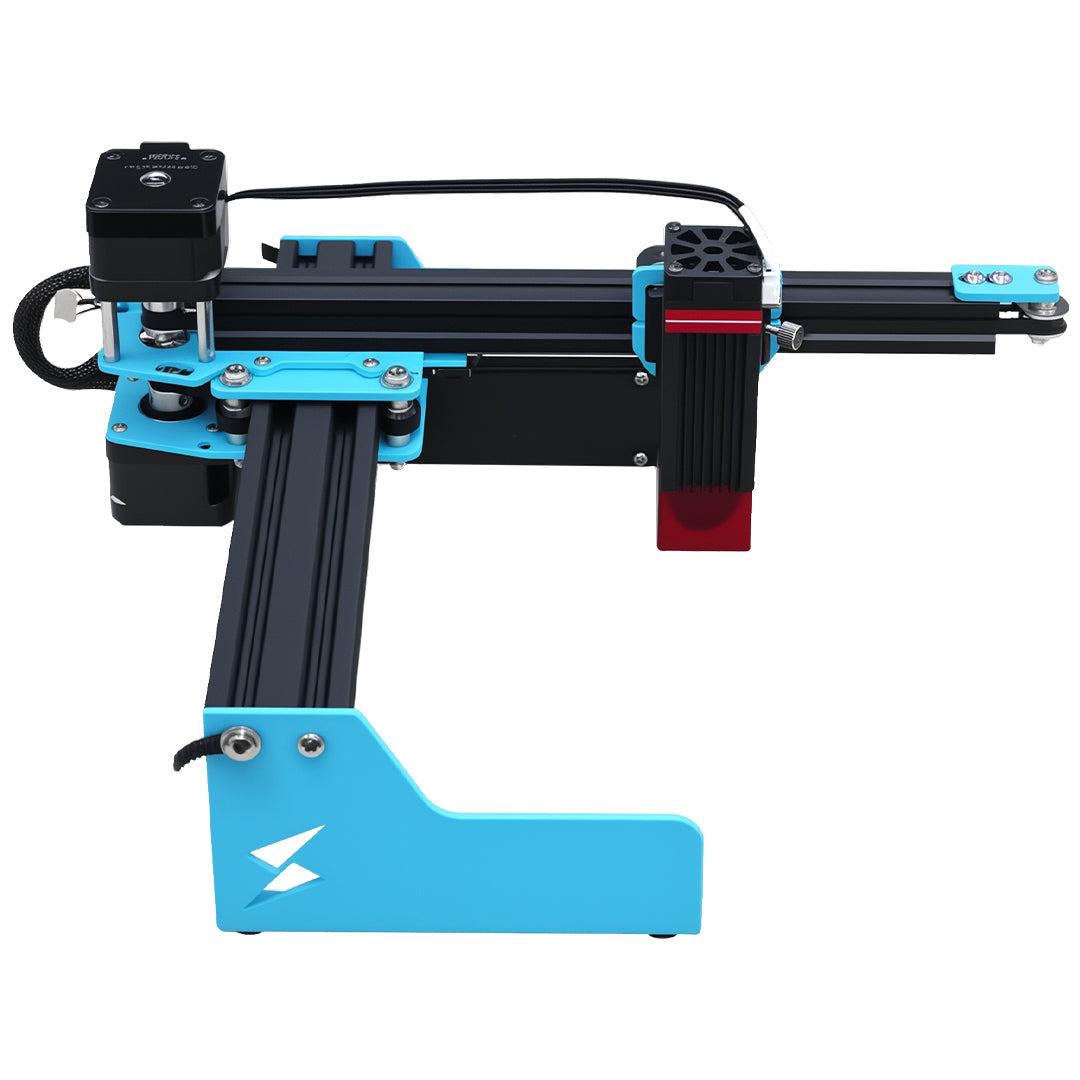
For a P2 job, confirm the software and controller combination in current TYVOK guidance. This comparison concerns preparation in a vector editor and compatible receiving software; it does not promise that every P2 application directly accepts an Illustrator file. After conversion to the supported delivery format, check the compact design's boundaries again and test only on an eligible blank using the approved setup.
Should I simplify all the nodes before trying an import?
No. First test a transfer that preserves the existing drawing. Simplification changes the artwork and can remove intentional detail, making the original cause harder to isolate.
Is a PNG export an equivalent fallback for a vector logo?
It can be a separate image-based workflow if supported, but it is not equivalent geometry. Pixel dimensions, physical size and the intended operation must be evaluated again. Keep the original vector file even if the final job uses an image.