

Getting the right speed and power settings is one of the biggest challenges for beginners when they're starting out with laser engraving wood. Too much power and you get excessive charring; too little and your mark is faint. Too fast and it's faint, too slow and you waste time and get burn marks.

So what are the best speed and power settings for laser engraving wood? The answer depends on a few factors – what type of wood you're engraving, how dark you want your mark to be, and how powerful your laser is.
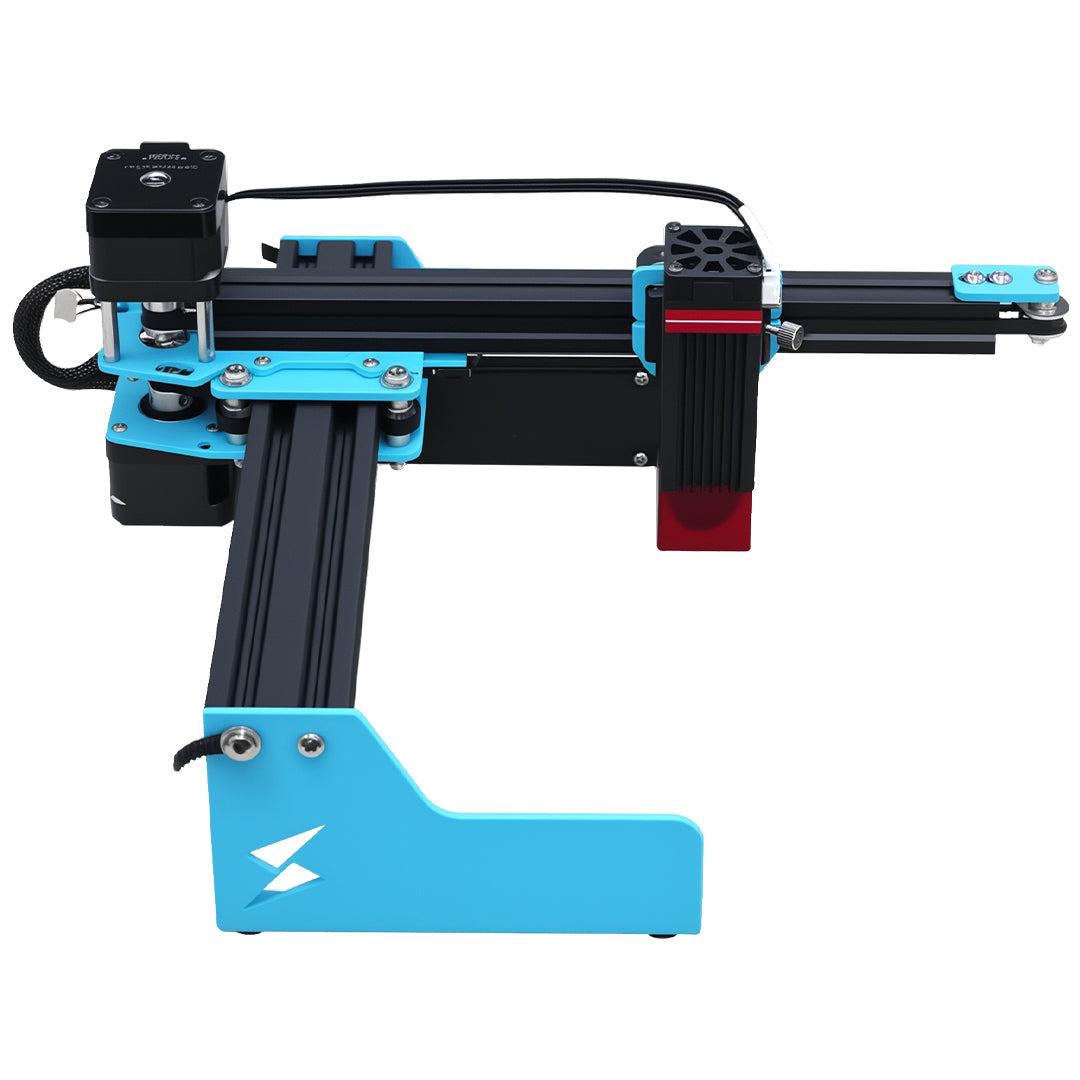
In this guide, we'll break down the recommended starting settings for the most common types of wood with diode lasers, so you can get great results on your first try. Whether you're using a 5W, 10W, or 20W diode laser like the Tyvok A1 Mini or the faster Tyvok P2, these starting points will get you going in the right direction.
The Short Answer: Recommended Starting Settings
For a 10W diode laser (like the Tyvok A1 Mini engraving most common hardwoods and softwoods:
| Wood Type | Engraving Power | Engraving Speed (mm/s) | DPI |
|
|
|
|
|
| Pine (softwood) | 30-40% | 250-300 | 300 |
| Birch Plywood | 40-50% | 200-250 | 300 |
| Maple | 40-50% | 200-250 | 300 |
| Walnut | 30-40% | 250-300 | 300 |
| Oak | 40-50% | 200-250 | 300 |
| Cherry | 35-45% | 200-250 | 300 |
| Balsa | 20-30% | 300-400 | 300 |
| MDF | 50-60% | 150-200 | 300 |
This is for a standard contrast engraving. If you want a darker, deeper mark, increase power by 10-20% or decrease speed by 50-100 mm/s.
Keep reading for more detailed recommendations by laser power and wood type, plus tips on how to adjust settings when you're not getting the result you want.
Key Factors That Affect Settings
Before we jump into the specific settings, it's important to understand what factors change what settings you need:
1. Laser Power
This is the big one. A 5W laser needs slower speeds than a 20W laser to get the same amount of energy on the wood. We've broken down our recommendations by power level below.
2. Wood Density
Denser woods (like maple, oak) are harder and need more power than softer woods (like pine, balsa). Soft woods char more easily, so you can use less power.
3. Desired Contrast
Do you want a subtle light engraving, or a deep dark brown/black mark that really pops? More power or slower speed gives you darker contrast.
4. Type of Engraving
- Text/vector engraving: Usually needs darker contrast than photos
- Photo engraving: Lower contrast is better to preserve grayscale detail
- Surface marking: Lower power, higher speed is often enough
- Deep engraving: Higher power, multiple passes
5. Focus
If your focus isn't correct, you'll need more power to get the same result. Always check your focus before starting – this is one of the most common mistakes beginners make. The Tyvok A1 Mini comes with a simple focus gauge that makes this quick and easy.
Detailed Settings by Laser Power
Let's look at the recommended starting settings for the most common diode laser power levels:
5W Diode Laser
| Wood Type | Power | Speed (mm/s) | Notes |
|
|
|
|
|
| Pine | 60-70% | 150-200 | Softwood, lower density |
| Birch Plywood | 70-80% | 100-150 | Most common hobby plywood |
| Maple | 70-80% | 100-150 | Dense hardwood |
| Walnut | 60-70% | 150-200 | Darker wood |
| Oak | 70-80% | 100-150 | Dense hardwood |
| Balsa | 40-50% | 200-250 | Very soft |
| MDF | 80-100% | 80-120 | Dense, absorbs more energy |
Notes for 5W: If you want a really dark mark, you may need to do two passes. 5W is great for engraving, but cutting thicker wood will be slow.
10W Diode Laser (Most Popular for Beginners)
| Wood Type | Power | Speed (mm/s) | Notes |
|
|
|
|
|
| Pine | 30-40% | 250-300 | |
| Birch Plywood | 40-50% | 200-250 | |
| Maple | 40-50% | 200-250 | |
| Walnut | 30-40% | 250-300 | |
| Oak | 40-50% | 200-250 | |
| Cherry | 35-45% | 200-250 | |
| Balsa | 20-30% | 300-400 | Very soft, easy to burn |
| MDF | 50-60% | 150-200 | |
| Cork | 15-25% | 300-350 | Very porous, burns easily |
| Plywood (1/8 inch cutting)* | 80-100% | 10-15 mm/s | One pass |
| Plywood (1/4 inch cutting)* | 80-100% | 3-8 mm/s | Two passes |
*Cutting settings for reference – this article is primarily about engraving settings
This is our recommended sweet spot for most beginners. A 10W diode like the Tyvok A1 Mini 10W gives you enough power for great engraving at reasonable speeds, and it can even cut 1/4 inch plywood when needed.
20W+ Diode Laser
| Wood Type | Power | Speed (mm/s) | Notes |
|
|
|
|
|
| Pine | 25-35% | 300-400 | |
| Birch Plywood | 35-45% | 250-350 | |
| Maple | 35-45% | 250-350 | |
| Walnut | 25-35% | 300-400 | |
| Oak | 35-45% | 250-350 | |
| Balsa | 15-25% | 400-500 | |
| MDF | 40-50% | 200-250 | |
Notes for 20W+: You can engrave much faster with 20W+ and still get great contrast. This is great for production work where speed matters. If you're using a galvo laser like the Tyvok P2, these settings work well – you just get your engravings done much faster than with a gantry diode.
Settings for Different Types of Engraving
Not all engraving is the same – here's how to adjust your settings based on what you're engraving:
Text Engraving (Bold, High Contrast)
Text needs to be readable, so you generally want more contrast than you do for photos. For text:
- Increase power by 10%
- Or decrease speed by 50 mm/s
- Result: Darker, more readable text
Photo Engraving
Photo engraving needs more gray levels, so you don't want to char too deeply. For photos:
- Decrease power by 10-15%
- Keep speed the same or increase it a bit
- Result: More subtle contrast, better grayscale detail
If your laser has variable power (dithering), make sure that's enabled for photos – it gives you much better results.
Deep Engraving
If you want to engrave deeply into the wood for a raised effect:
- Do multiple passes instead of cranking your power to 100%
- Let the wood cool between passes if it's starting to smoke a lot
- 2-3 passes at 80% power usually gives better results than 1 pass at 100%
Vignetting / Surface Marking
If you're just doing a light surface mark:
- Decrease power by 20-30%
- Increase speed by 100 mm/s
- Result: Light, subtle mark that still looks good
How to Do a Test Engrave (Important!)
These starting settings are just that – starting points. You should always do a small test engrave on a scrap piece of the same wood before you do your big project. Here's why:
1. Different batches of the same type of wood can vary
2. Your laser's actual output might vary a bit from the rated power
3. Different diode lasers focus differently, which affects the power density
How to do a quick test:
1. Cut a small scrap piece of the wood you're using
2. Create a small test pattern with your logo or some text
3. Engrave it with your starting settings
4. Look at the result:
- If it's too faint: Increase power by 10% or slow down by 50 mm/s
- If it's too much charring/burning: Decrease power by 10% or speed up by 50 mm/s
5. Repeat until you get the result you want
This only takes a few minutes, and it saves you from ruining a good piece of wood. It's worth the extra time.
Common Problems and How to Fix Them
Here are the most common issues beginners have with laser engraving wood, and how to fix them by adjusting your settings:
Problem: My engraving is too faint
What's happening: Not enough energy is reaching the wood.
Solutions:
1. Check your focus first – this is the most common issue! If your focus is wrong, nothing else will fix it.
2. Increase your laser power by 10-20%
3. If you don't want more charring, decrease your speed by 50-100 mm/s instead
4. If you're already at max power, do a second pass
Problem: There's too much charring / burning
What's happening: Too much energy is going into the wood.
Solutions:
1. Decrease your power by 10-20%
2. Increase your speed by 50-100 mm/s
3. If you still need the same total energy, do two lighter passes instead of one heavy pass
Some woods (like pine) just char more easily – you have to use lower power than you would for a dense hardwood like maple.
Problem: Some areas are darker than others
What's happening: This is usually either inconsistent focus or inconsistent wood density.
Solutions:
1. Make sure your wood is flat – if it's warped, some areas will be out of focus
2. Check that your bed is level
3. Some natural variation in wood density is normal – you can't completely eliminate this, but it adds character!
Problem: My cutting doesn't go all the way through
This isn't engraving, but it's a common question. For cutting plywood with a 10W diode:
- 1/8 inch (3mm): 100% power, 8-15 mm/s – one pass is usually enough
- 1/4 inch (6mm): 100% power, 3-8 mm/s – two passes usually works
- If it's not cutting all the way through: Slow down more, don't just increase power. More power just burns the edges more.
Tips for Getting Better Results
Here are some pro tips that will help you get better engraving results every time:
1. Always Focus Correctly
We keep saying this because it's that important. Out-of-focus laser = bad results. Get this right first, before you start messing with power and speed settings.
2. Clean Your Lens
A dirty lens reduces your effective power. If you notice that you need more power than you used to for the same result, clean your lens with lens paper and isopropyl alcohol.
3. Let It Cool Between Multiple Passes
If you're doing multiple passes for deep engraving, let the wood cool for a couple of minutes between passes. If you keep going while it's hot, you'll get more unwanted charring.
4. Wipe Off Soot After Engraving
After engraving, there's always loose soot on the surface. Wipe it off with a damp paper towel to see what your engraving actually looks like. Sometimes what looks like too much charring is just loose soot that wipes right off.
5. Adjust for Humidity
Wet or green wood has more moisture, so it needs more power than dry, seasoned wood. If you're engraving fresh wood, increase power by 10-15%.
6. Start Conservative
It's easier to add more power than it is to fix too much burning. When in doubt, start with lower power and work your way up. Better to have a faint test than a burned test.
Frequently Asked Questions
Q: Does DPI matter for wood engraving?
A: Yes, but 300 DPI is enough for almost all projects. 330 DPI gives you a little more detail, but it takes longer. For most text and even photos, 300 DPI is perfect. You only need higher DPI for extremely fine detail work.
Q: Do I need air assist for wood engraving?
A: Air assist helps keep the lens clean and reduces charring a bit, but it's not absolutely required for engraving. It's more important for cutting. If you have it, use it. If you don't, you can still get good engraving results.
Q: Why does my wood smoke so much?
A: Some smoking is normal when engraving wood. Make sure you have good ventilation. If you're getting way more smoke than normal, you're probably using too much power. Try decreasing power and slowing down instead.
Q: Can you use the same settings for cutting and engraving?
A: No – cutting needs much slower speeds and higher power than engraving. The settings in this article are for engraving only.
Q: My laser is rated at 10W output, but these settings are lower than 100% – why?
A: Most of the time, you don't need 100% power for good engraving. Using full power all the time just causes extra charring and reduces your diode's lifespan. Using the right power level for the job gives you better results and makes your laser last longer.
Final Thoughts
Getting the right speed and power settings for laser engraving wood is something of an art, but these starting settings will get you 90% of the way there. Remember – these are just starting points, and you should always do a test on scrap wood first.
For most beginners with a 10W diode like the Tyvok A1 Mini 10W diode laser, the settings we've listed in this guide will give you great results right out of the gate. If you're doing production work and need faster engraving, the Tyvok P2 galvo laser uses the same power percentages, just runs at much higher speeds.
The most important thing is to experiment and keep notes. Write down what settings work for different woods with your specific machine, and soon you'll know exactly what settings to use without even needing to do a test. Happy engraving
Related Reading: Best Speed and Power Settings for Laser Engraving Wood: Complete Guide 2026
Related Reading: Best Speed And Power Settings For Laser Engraving Wood 2026
Related Reading: Best Acrylic For Laser Engraving And Cutting Beginner S Guide 2026