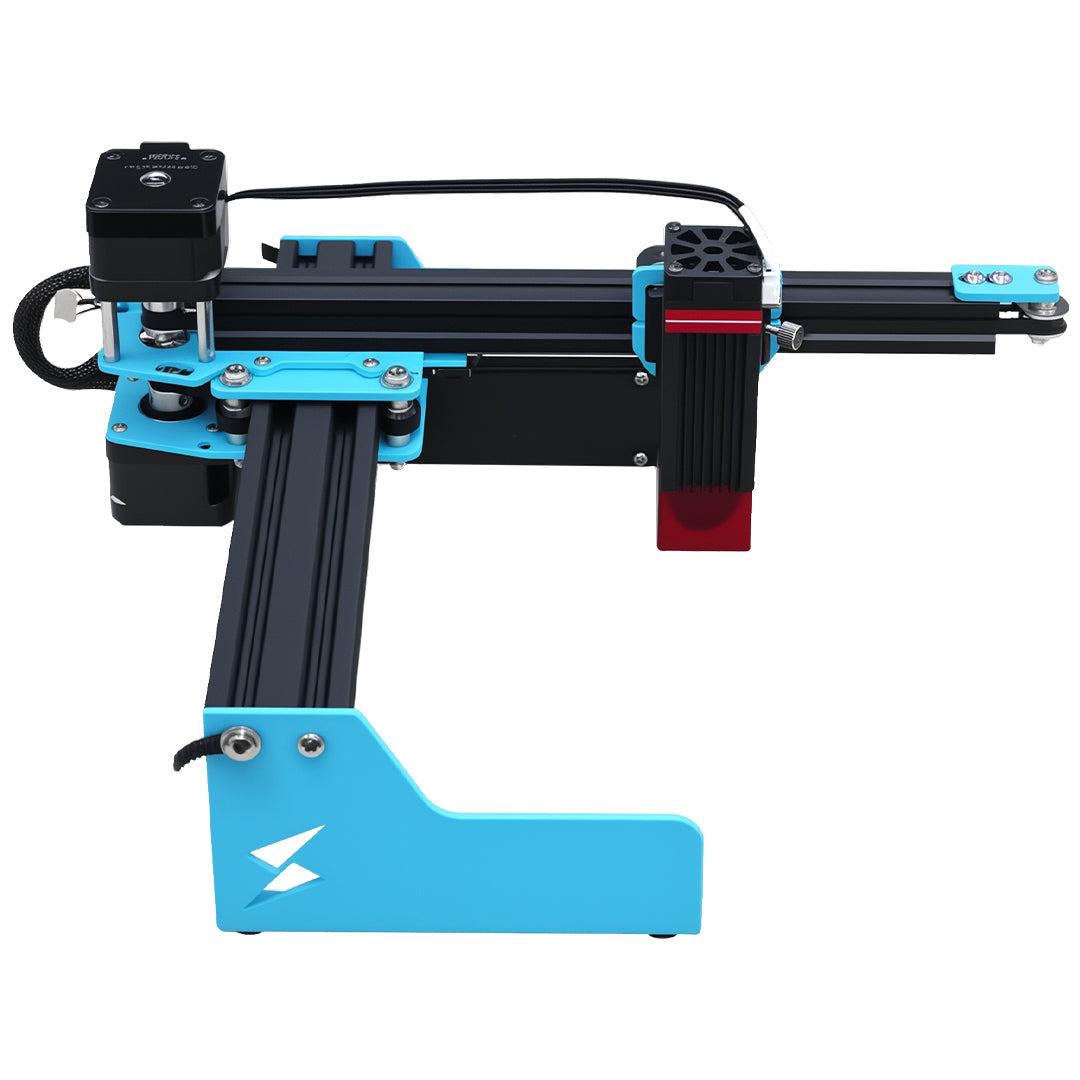


Short answer: Use this TYVOK X1S Pro 60W page as a starter settings record. Run a material test grid on the exact blank, then save speed, power, passes, focus, cleanup, and supplier details before customer work.

TYVOK X1S Pro 60W starter settings table
| Material | Starter speed | Power | Passes | Test note |
|---|---|---|---|---|
| Opaque acrylic sign | mm/min test grid | Medium to high | 1+ | Diode workflow depends on acrylic color. |
| Colored acrylic engraving | faster mm/min grid | Low to medium | 1 | Do not assume clear acrylic will work like colored acrylic. |
| Sign batch layout | separate cut/engrave grids | Medium to high | 1+ | Run first-article inspection before batch work. |
How to turn the setting into a repeatable product
Confirm the software unit first, then keep one saved record per material. A reliable TYVOK workflow should include the material source, machine power, test photo, cleanup step, and final customer-ready inspection.
When to compare another TYVOK machine
If the project changes material family, work area, or production volume, compare the TYVOK settings chart and buying guide instead of forcing one preset across P2, P2 Ultra, X1S, X1S Pro, and K1 Pro.