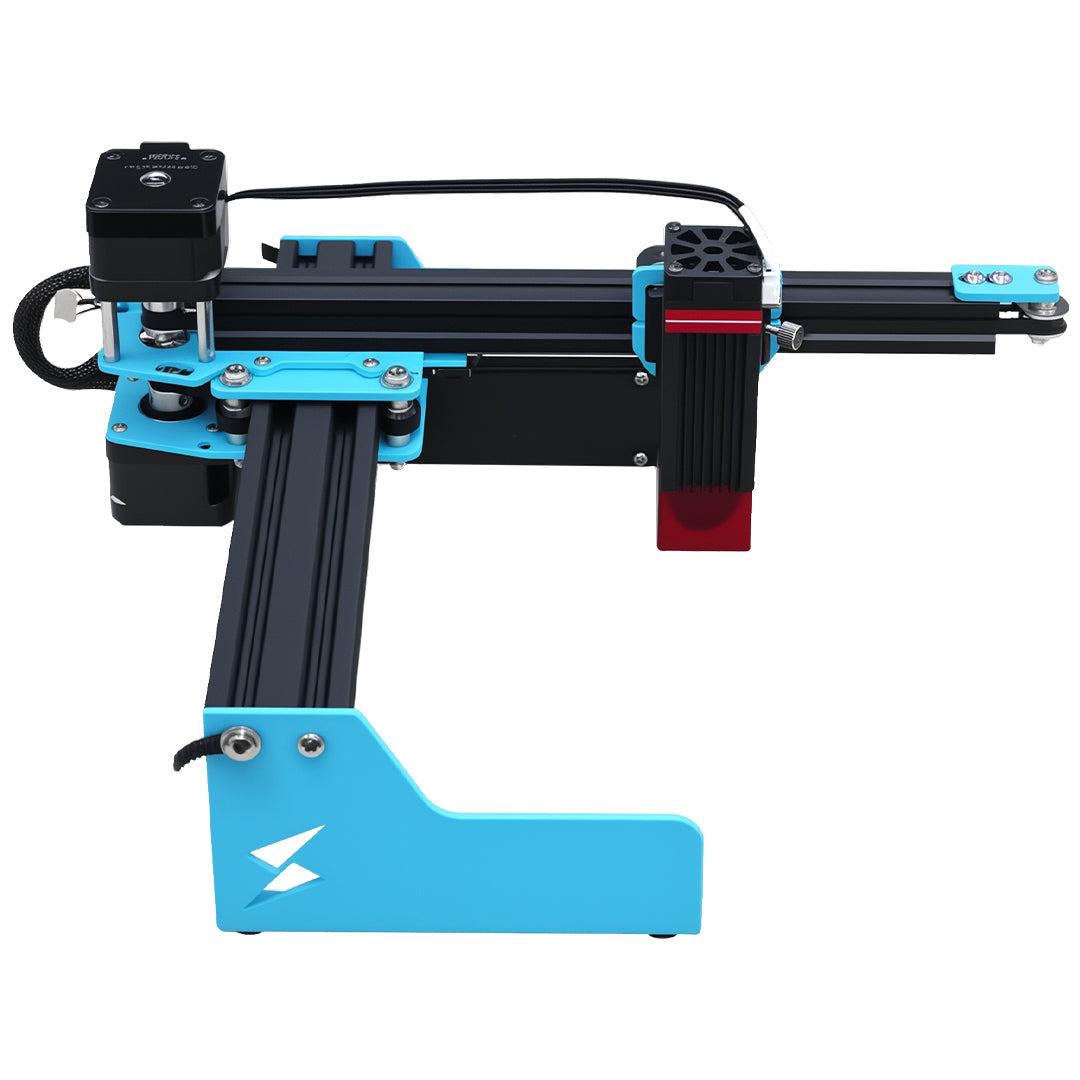


So you just got your new Tyvok A1 Mini laser engraver – congratulations! Now what? How do you set it up and get your first engraving done?

Setting up the A1 Mini is actually really simple, even if you're a complete beginner who's never used a laser engraver before. I'll walk you through every step in this guide.
By the end, you'll be ready to make your first project. Let's get started.
What's in the Box?
First, let's check that you have everything:
- Tyvok A1 Mini machine
- Power adapter
- USB cable
- Focus block
- Sample material (usually a small piece of wood)
- Quick start guide
Everything you need to get started is included – no extra parts required.
Step 1: Unbox and Place Your Machine
- Take everything out of the box
- Place the A1 Mini on a flat, stable table
- Make sure there's plenty of space around it for ventilation
- Keep it away from flammable materials (just to be safe)
The A1 Mini is small and lightweight, so it fits easily on most desks.
Step 2: Connect the Power and USB
- Connect the power adapter to the machine and plug it into the wall
- Connect the USB cable from the machine to your computer
- Turn on the power switch on the back of the machine
That's it for the physical connections – it's really that simple.
Step 3: Install LightBurn Software
The A1 Mini works with LightBurn, the most popular software for laser engraving. Here's how to install it:
- Go to the LightBurn website and download the version for your operating system (Windows, Mac, or Linux)
- Install the software on your computer
- When you run LightBurn for the first time, it will ask you to set up your laser:
- Select "Marlin" as the driver (A1 Mini uses standard Marlin firmware)
- Set the working area to 120mm × 130mm
- Complete the setup wizard
LightBurn has a free 30-day trial, and then it's a one-time purchase to activate. There's no subscription required.
If you're looking for free software, the A1 Mini also works with LaserGRBL.
Step 4: Connect LightBurn to Your A1 Mini
- In LightBurn, click the "Connect" button
- Select the USB port that your A1 Mini is connected to
- The machine should connect – you'll see the status change to "Connected"
If it doesn't connect, check:
- Is the machine turned on?
- Is the USB cable plugged in securely on both ends?
- Do you have the correct drivers installed? (Windows usually installs them automatically)
Step 5: Focus the Laser
Focusing is important for good engraving quality. Here's how to do it with the A1 Mini:
- Place your material on the bed
- Remove the protective cap from the laser head
- Take the included focus block
- Move the laser head to the center of your material
- Lower the laser head until the focus block fits snugly between the lens and your material
- Tighten the set screw to hold the laser head in place
- Remove the focus block
That's it! You're focused and ready to go. The A1 Mini uses manual focusing, which is simple and reliable.
Step 6: Test Your First Engraving
Let's do a quick test to make sure everything is working:
- Import a simple test image or design into LightBurn
- Set the power and speed for your material (for the sample wood that comes with the machine, start with: Power = 30%, Speed = 200mm/s)
- Click "Frame" to make sure the design fits on your material
- When everything looks good, click "Start"
- Watch the machine do its thing!
After it's done, take a look at the engraving. If it's not deep enough, increase the power or decrease the speed. If it's too deep/burned, decrease the power or increase the speed.
Tips for Getting Great Results
- Use masking tape: Put masking tape over your material before engraving – this helps prevent burning and makes cleanup easier.
- Ventilation: Always use your laser engraver in a well-ventilated area. You can use a small fan to blow the fumes out a window.
- Start slow: When you're trying a new material, do a small test first to find the right power/speed settings.
- Clean the lens: If your engraving starts getting faint, clean the lens with a cotton swab and isopropyl alcohol.
Troubleshooting Common Issues
- Machine won't connect: Try unplugging the USB and plugging it back in. Restart LightBurn.
- Engraving is too faint: Check your focus, increase power, or slow down the speed.
- Machine doesn't move: Make sure you removed the protective shipping foam – sometimes it holds the frame in place.
Next Steps After Setup
Now that your A1 Mini is set up and working, you're ready to start making projects! Some great beginner projects to start with:
- Keychains
- Pet tags
- Leather jewelry
- Wooden coasters
- Custom gifts for friends and family
Wrapping Up
As you can see, setting up the Tyvok A1 Mini is really straightforward. Most people can get it done in 30 minutes or less, even if you've never used a laser engraver before.
If you followed these steps, you should be up and running and ready to make your first project. Have fun creating!
👉 Get your own Tyvok A1 Mini here:
Tyvok A1 Mini Desktop Laser Engraving Machine (3.5W $109 / 5W $149)
Read our full review:
Is the Tyvok A1 Mini Worth It in 2026? Full Review for Beginners
Published: March 21, 2026 by Alex Maker
💡 Tip: Looking for the best value galvo laser for metal marking? The Tyvok P2 2W Galvo Laser is our top pick for 2026 — currently 50% OFF at just $149!