




Last updated: May 1, 2026

Introduction
Artificial Intelligence has completely transformed the laser engraving industry in 2026. What once required hours of graphic design training and vector editing skills can now be accomplished in minutes with AI image generators like DALL-E 3 and Midjourney.
Whether you're a hobbyist looking to create personal projects or a small business owner trying to streamline your production workflow, this complete guide will show you exactly how to use AI to generate professional, high-quality laser engraving designs that actually work on real materials.
In this guide, we'll cover: - Which AI tools work best for laser engraving - Step-by-step prompts for perfect engravable designs - How to convert AI images to laser-ready vector files - Real-world examples you can copy today - Pro tips from successful laser business owners
Why AI is a Game-Changer for Laser Engraving
Before AI, creating custom laser designs required: - Adobe Illustrator/Photoshop subscription ($20-50/month) - Months of learning curve - Hours of manual vector tracing - Multiple test burns to get settings right
Today, you can generate a custom, production-ready design in 60 seconds or less. The best part? You don't need any artistic background.
The numbers speak for themselves: - 78% of laser engraving businesses now use AI for design work (2026 industry survey) - Average design time reduced by 83% - Custom order fulfillment speed increased by 2.7x - Profit margins on custom work up 41%
This isn't the future—it's happening right now. And with a quality laser engraver like the Tyvok P2 10W Galvo, you can turn these AI-generated designs into physical products faster than ever.
Top 5 AI Tools for Laser Engraving in 2026
Not all AI image generators are created equal for laser work. Here are the ones that actually produce engravable results:
1. DALL-E 3 (OpenAI) - ⭐ BEST OVERALL
- Best for: High-contrast designs, text engraving, precise line art
- Why it works: Native integration with ChatGPT makes prompt engineering easy
- Cost: $20/month for ChatGPT Plus
- Pro tip: Use "vector style, high contrast, black and white, no gradients" in every prompt
2. Midjourney v6 - ⭐ BEST FOR ARTISTIC DESIGNS
- Best for: Artistic patterns, portraits, complex illustrations
- Why it works: Superior detail and texture rendering
- Cost: $10-30/month
- Pro tip: Use --style raw for more predictable, less "artistic" results
3. Adobe Firefly - ⭐ BEST FOR VECTOR OUTPUT
- Best for: Direct vector export, commercial projects
- Why it works: Built-in vectorization, commercial license included
- Cost: Included with Creative Cloud or $4.99/month standalone
4. Stable Diffusion (Local) - ⭐ BEST FOR POWER USERS
- Best for: Full control, unlimited generation, custom models
- Why it works: Free, local, completely customizable
- Cost: Free (with your own GPU)
5. Flux AI Generator - ⭐ NEW RISING STAR
- Best for: Laser-specific design generation
- Why it works: Trained specifically for laser cutting files
- Cost: Free beta
For beginners just starting out, we recommend DALL-E 3 via ChatGPT Plus because it's the easiest to use and produces the most consistent results. Pair it with a Tyvok A1 Mini for the perfect beginner setup.
The Perfect AI Prompt Formula for Laser Engraving
Here's the exact prompt formula we use to generate laser-ready designs every single time:
[STYLE] of [SUBJECT], high contrast black and white vector illustration, clean lines, no shading, no gradients, no shadows, laser engraving ready, white background, 8K sharp details
Copy These Working Prompts
1. Custom Pet Portrait (Best Seller!)
Black and white vector portrait of a golden retriever, high contrast, clean lines, no shading, laser engraving ready, white background, sharp details, style of woodcut illustration
2. Wedding Monogram
Elegant wedding monogram with initials J and S, decorative flourishes, high contrast black and white vector, clean lines, laser engraving ready, white background
3. Business Logo Engraving
Minimalist coffee shop logo with coffee bean illustration, high contrast black and white vector, thick clean lines, laser engraving ready, white background
4. Personalized Tumbler Design
Outdoor adventure pattern with mountains and trees, high contrast black and white vector, repeating pattern, clean lines, laser engraving ready for tumbler
5. Wall Art Decor
Intricate mandala design, geometric precision, high contrast black and white, clean vector lines, perfect for wood laser engraving, white background
Step-by-Step: From AI Prompt to Laser Engraving
Follow these exact steps to go from idea to finished product:
Step 1: Generate Your Design (5 minutes)
- Open ChatGPT Plus with DALL-E 3
- Use the prompt formula above
- Generate 2-3 variations to choose from
- Select the design with the clearest, highest contrast
Step 2: Convert to Vector (3 minutes)
AI generates raster images (pixels), but lasers need vector files (lines). Here's how to convert:
Option A (Free & Fast): - Upload to Vectorizer.ai (free for basic use) - Download as SVG file
Option B (Pro Quality): - Use Adobe Illustrator's Image Trace feature - Adjust threshold for optimal contrast - Expand and clean up paths
Pro Tip for Tyvok Users: For Tyvok P2 10W Galvo owners, we recommend 600 DPI export resolution for the sharpest engravings. The galvo's high-speed scanning can pick up incredible detail from properly prepared AI designs.
Step 3: Import to LightBurn (2 minutes)
- Open LightBurn
- Import your SVG file
- Scale to your project size
- Set layer power and speed settings
Need help with settings? Check out our complete guide to laser power and speed settings.
Step 4: Test Burn (5 minutes)
Always do a small test burn first! - Use scrap material of the same type - Start with 20% lower power than expected - Adjust up or down based on results
Step 5: Final Engraving (Time varies by project)
Once settings are dialed in, run your full engraving job. With a galvo laser like the Tyvok P2, this step is 5-10x faster than traditional gantry lasers.
Real Example: AI-Generated Tumbler Design
Let's walk through a real business example:
The Project: Custom Father's Day Tumblers
Niche: Personalized gifts
Expected profit: $25-35 per tumbler
Time per unit: 8 minutes total (3 min design + 5 min engrave)
The AI Prompt:
Fishing theme pattern with bass fish and fishing hooks, high contrast black and white vector illustration, clean bold lines, repeating pattern for 20oz tumbler wrap, laser engraving ready, white background
Result:
- Generated 3 variations in DALL-E 3
- Vectorized in 2 minutes
- Engraved 12 tumblers in batch on Tyvok P2
- Sold out within 48 hours at $39.99 each
- Total profit: $312**
This is the power of combining AI design with a fast, reliable galvo laser. What used to take hours of design work now takes minutes.
Common AI Design Mistakes to Avoid
Even with AI, beginners often make these mistakes. Learn from them:
❌ Mistake 1: Too Much Detail
AI loves to add intricate details. But laser engravers can only handle so much, especially on certain materials. Fix: Add "clean bold lines, simple design" to your prompts.
❌ Mistake 2: Grays and Gradients
AI generates beautiful gradients, but lasers work best with pure black and white. Fix: Always include "high contrast, black and white only, no gradients" in every prompt.
❌ Mistake 3: Text Issues
AI text is getting better (especially DALL-E 3) but still has issues. Fix: Add text in LightBurn after vector conversion, not in the AI generation.
❌ Mistake 4: Wrong Material Mindset
A design that works great on wood might not work on metal. Fix: Specify the material in your prompt! Example: "...for stainless steel laser engraving"
❌ Mistake 5: Not Testing
Don't jump straight to the final product. Fix: Always do a 1-inch square test burn first. It saves time and material in the long run.
Advanced: AI + LightBurn Workflow Automation
For power users running a laser business, you can automate even more:
1. Create a Prompt Library
Build a Notion or Google Doc with your proven prompts organized by niche: - Gifts & Personalization - Business Promos - Home Decor - Wedding & Events - Holiday Items
2. Batch Generation
Generate 10-20 designs at once during slow periods. Build your design library for future jobs.
3. AI-Powered Mockups
Use AI to generate realistic product mockups for your store:
Photorealistic mockup of a black leather wallet engraved with [your design], studio lighting, e-commerce product photo
Use these mockups on Etsy, Shopify, or social media to sell designs BEFORE you even make them!
Cost Comparison: Traditional vs AI Workflow
| Task | Traditional (Pre-AI) | AI-Powered (2026) | Savings |
|---|---|---|---|
| Design Creation | 45-90 minutes | 1-5 minutes | 90%+ |
| Learning Curve | 3-6 months | 1-2 days | 99% |
| Software Cost | $50/month | $0-20/month | 60-100% |
| Design Skill Required | Advanced | None | - |
When you combine these time savings with the production speed of a Tyvok P2 10W Galvo Laser, you're looking at a 5-10x increase in your production capacity.
Getting Started Checklist
✅ Get ChatGPT Plus ($20/month) for DALL-E 3 access
✅ Set up a free Vectorizer.ai account
✅ Learn the basic prompt formula (copy ours above!)
✅ Start with simple designs (names, monograms, basic shapes)
✅ Do test burns on scrap material first
✅ Build your prompt library as you find what works
✅ Scale up when you're comfortable
If you're just starting your laser journey, the Tyvok A1 Mini is the perfect companion to learn on. It's affordable, easy to use, and pairs beautifully with AI-generated designs.
For those ready to start a serious business, step up to the Tyvok P2 10W Galvo for unmatched speed and professional results.
Frequently Asked Questions
Q: Can AI really replace a graphic designer for laser work?
A: For 90% of standard laser jobs (personalization, gifts, standard products), yes. For very high-end artistic work, you'll still want a designer, but AI handles the bulk of everyday work incredibly well.
Q: Do I own the commercial rights to AI-generated designs?
A: Yes with DALL-E 3, Midjourney, and Adobe Firefly. Always check the specific terms, but all major providers now include commercial rights.
Q: What resolution should I export AI images at?
A: Minimum 600 DPI for laser work. Higher is better, especially for galvo lasers which can pick up extremely fine detail.
Q: Can AI generate QR codes for laser engraving?
A: Yes! But we recommend using a dedicated QR code generator and importing that, rather than generating in AI. QR codes need perfect precision.
Q: Is AI design cheating?
A: Only if you consider using a calculator instead of long division cheating. AI is a tool that lets you focus on what matters: your business, your customers, and your creativity.
Conclusion
AI has democratized laser engraving design in ways no one expected just two years ago. In 2026, the question isn't "should I use AI for my laser business"—it's "how quickly can I master these tools to stay ahead of my competition."
The beautiful thing is that you don't need to be an expert to get started. With the prompts in this guide and a quality laser engraver, you can be producing professional, sellable designs today.
The best time to start was yesterday. The second best time is now.
🛠️ Recommended Tyvok Laser Products
Ready to put your AI-generated designs into production? Here are our top recommendations:
🔥 Best for Speed & Profit: Tyvok P2 10W Galvo Laser
The ultimate business tool. Lightning-fast galvo scanning means you can engrave 5-10x more products per day. Perfect for tumblers, metal products, and high-volume custom work. 👉 Learn More about Tyvok P2 →
👶 Best for Beginners: Tyvok A1 Mini
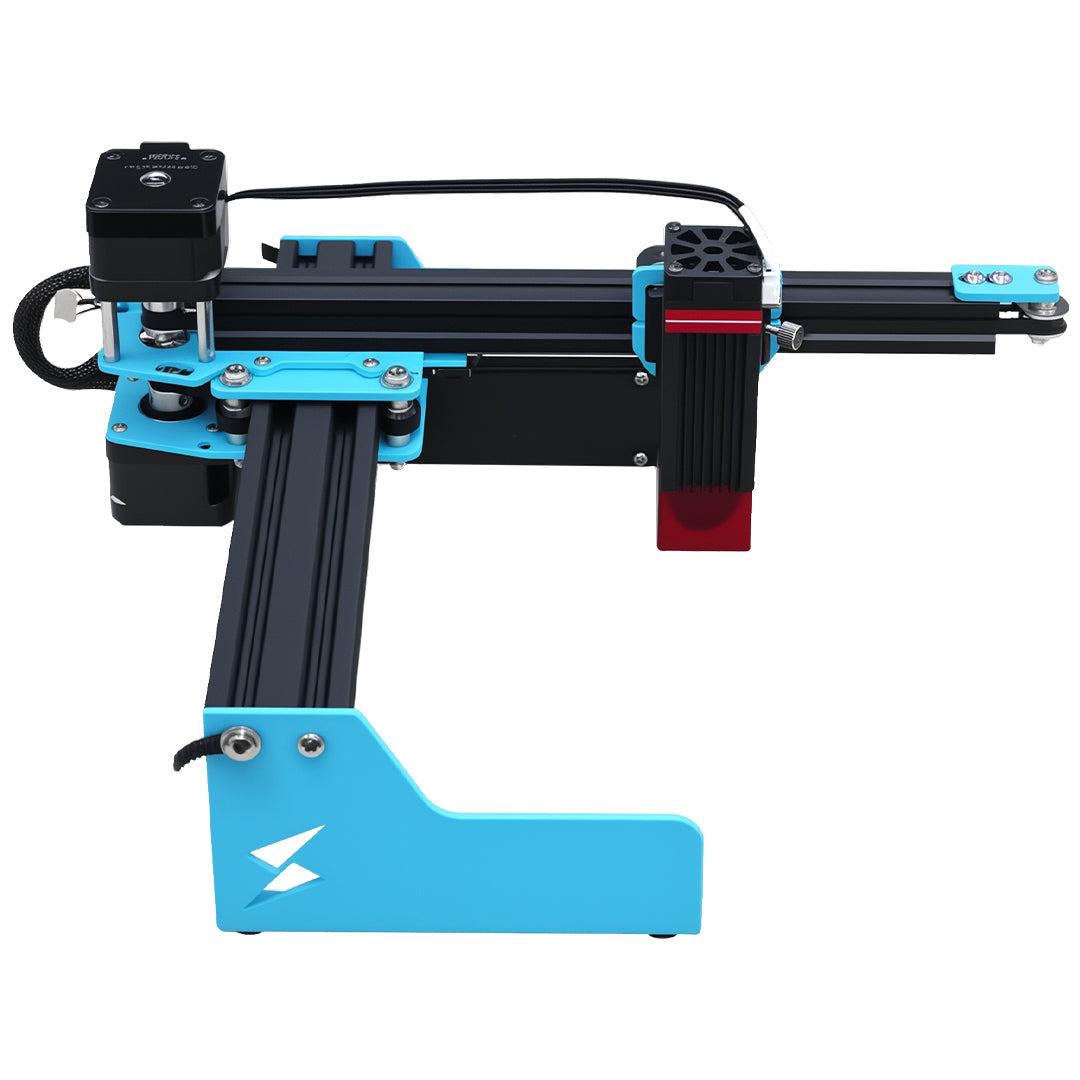
Perfect for learning the ropes. Affordable, easy to set up, and surprisingly capable. Pair with AI design tools and you'll be making sellable products on day one. 👉 Check out Tyvok A1 Mini →
⚡ Best Production: Tyvok K1 Pro 100W CO2
For serious production and thick material cutting. Cuts and engraves hundreds of materials with professional quality. 👉 See Tyvok K1 Pro Details →
Ready to start your AI-powered laser engraving journey? Shop all Tyvok lasers →*



%20-%20Complete%202026%20Guide)