

AUTHOR:Alex Thompson
TAGS:laser engraving, Tyvok A1 Mini, LightBurn settings, beginner guide, laser settings, diode laser
BODY_HTML:

Best LightBurn Settings for Tyvok A1 Mini: Complete Beginner's Guide 2026
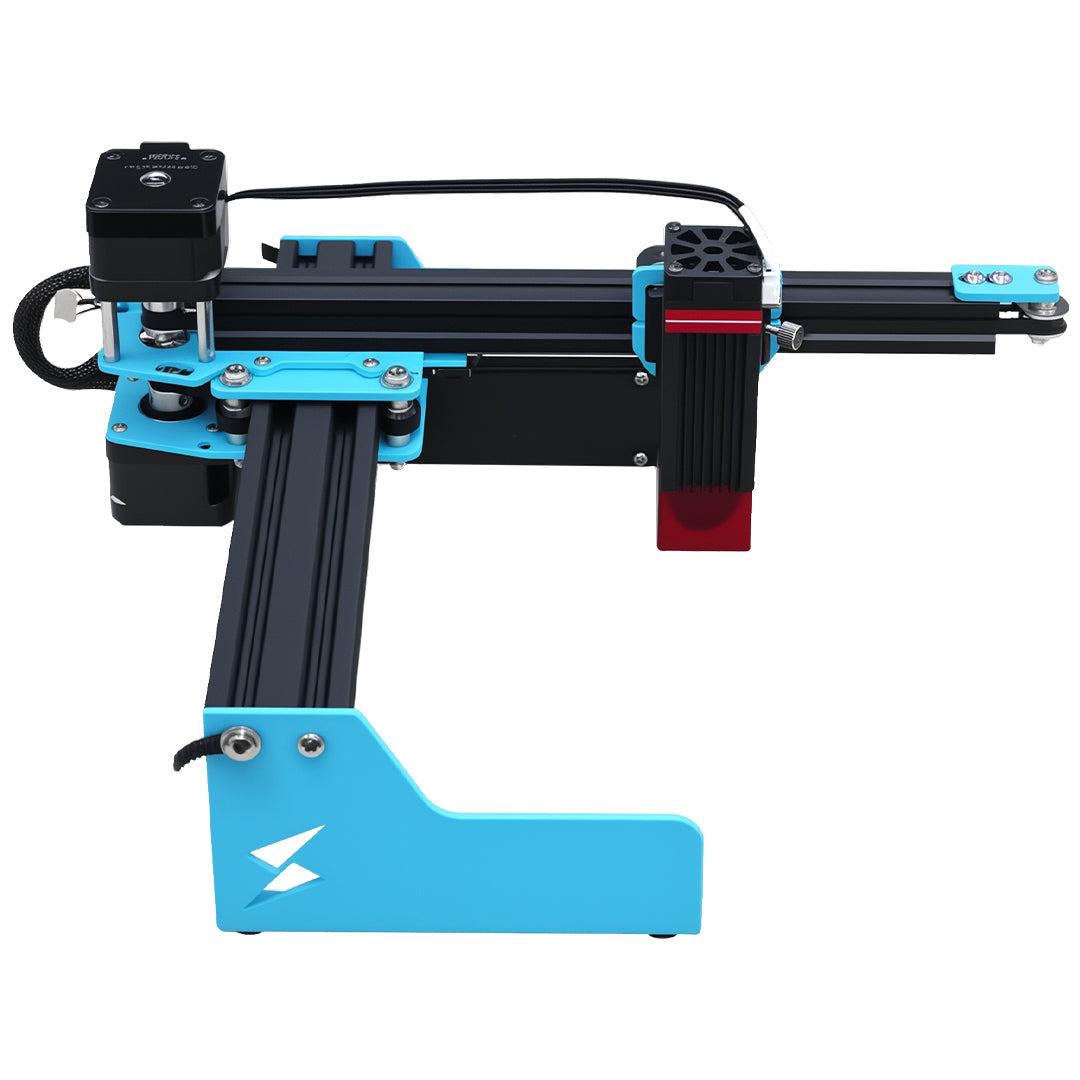
If you just unboxed your new Tyvok A1 Mini 10W diode laser and you're ready to start engraving, one of the first questions you're going to have is: what are the best LightBurn settings to use? Getting the right settings makes all the difference between a clean, crisp engraving and a blurry, burnt mess.
After testing dozens of different materials with my own Tyvok A1 Mini, I've compiled all my tested settings in this complete guide. Whether you're a complete beginner or you've been using lasers for a while, these settings will help you get great results on your first try. Let's dive in.
Quick Overview: Understanding LightBurn Settings for the Tyvok A1 Mini
Before we get into the specific material settings, let's quickly cover what each setting does and why it matters for the Tyvok A1 Mini.
Speed (mm/s)
This is how fast the laser head moves across your material. Faster speeds mean lighter engravings and shorter job times. Slower speeds mean deeper, darker engravings but longer job times.
Power (%)
This is how much power the laser outputs, from 0% to 100%. Higher power cuts deeper and burns darker. The Tyvok A1 Mini's actual optical power is around 10W, so we can push it pretty hard compared to lower-powered diode lasers.
DPI (Lines per inch)
This determines how detailed your engraving will be. Higher DPI gives more detail but longer job times. For most work, 300-500 DPI is perfect for the A1 Mini.
Number of Passes
Sometimes you need multiple passes to get the depth or darkness you want, especially for thicker materials or when cutting. The A1 Mini usually does fine with one pass for most engravings.
Tested LightBurn Settings for Common Materials
All of these settings are tested on my own Tyvok A1 Mini with the stock 10W diode. Your results might vary slightly depending on your specific machine and material, but these settings should give you a great starting point.
| Material | Type | Speed | Power | DPI | Passes | Notes |
|---|---|---|---|---|---|---|
| Light-colored Wood (Pine, Birch) | Engrave | 300 | 40% | 300 | 1 | Clean contrast, minimal charring |
| Dark-colored Wood (Walnut, Cherry) | Engrave | 400 | 30% | 300 | 1 | Lower power prevents too much darkening |
| Plywood (3mm) | Engrave | 350 | 40% | 300 | 1 | Good contrast, watch for glue lines |
| Plywood (3mm) | Cut | 80 | 100% | - | 3-4 | Slow down for thicker plywood |
| Acrylic (Clear, 3mm) | Engrave | 500 | 50% | 300 | 1 | Great frosted effect |
| Acrylic (Colored, 3mm) | Engrave | 400 | 40% | 300 | 1 | Lower power prevents melting |
| Acrylic (3mm) | Cut | 100 | 100% | - | 2-3 | Cuts through cleanly with multiple passes |
| Leather (Natural) | Engrave | 250 | 40% | 300 | 1 | Beautiful dark burn contrast |
| Leather (Synthetic) | Engrave | 350 | 30% | 300 | 1 | Watch for toxic fumes - use extraction! |
| Anodized Aluminum | Engrave | 500 | 35% | 500 | 1 | Perfect contrast - removes anodization cleanly |
| Glass | Engrave | 500 | 30% | 300 | 1 | Use masking for better results |
| Stone / Marble | Engrave | 300 | 50% | 300 | 1 | Good contrast, clean results |
| Paper / Cardstock | Engrave | 500 | 20% | 300 | 1 | Low power prevents burning edges |
| Corian | Engrave | 300 | 45% | 300 | 1 | Excellent photo engraving results |
Pro Tips for Better Results with Your Tyvok A1 Mini
1. Always Do a Test First
Even with these tested settings, you should always run a small test on a scrap piece of the same material before doing your final engraving. Different batches of material can behave differently, and it's better to waste a little scrap than ruin a good workpiece.
2. Keep Your Lens Clean
A dirty lens will reduce your effective power and give you blurry, inconsistent results. Clean your lens regularly with lens cleaning paper and isopropyl alcohol. If your results start getting worse even with the same settings, check your lens first.
If you're getting consistent blurriness even with a clean lens, check out our guide to common causes of blurry laser engravings and how to fix them →.
3. Focus Correctly
The Tyvok A1 Mini has a fixed focus lens, so you need to make sure your material is at the correct height. Use the provided focus gauge every time you change materials. Even a millimeter off can make a big difference in your results.
4. Use Air Assist
The A1 Mini comes with air assist – use it! It helps keep the lens clean, prevents excessive charring, and gives you cleaner cuts. I run it at about 5-10 PSI for most materials.
5. Always Use Proper Ventilation
Different materials produce different fumes when laser engraved, and some of them are toxic. Always use proper fume extraction or ventilation when running your A1 Mini. For more details on staying safe, check our complete laser engraving safety guide →.
Frequently Asked Questions
What DPI should I use for photo engravings on the Tyvok A1 Mini?
For photos, I recommend using 500 DPI. This gives you enough detail for good results without making your job take forever. You can go up to 600 DPI if you really want maximum detail, but it will significantly increase your job time.
Why does my wood engraving look too burnt?
If your wood engraving is excessively dark and burnt, try increasing the speed or lowering the power. Different woods burn differently – darker woods usually need lower power than lighter woods. You can also do multiple lighter passes instead of one heavy pass for cleaner results.
Can the Tyvok A1 Mini cut through 1/4 inch hardwood?
It can, but it will take multiple passes (usually 5-6 passes) and it's pretty slow. The A1 Mini is primarily an engraving machine first – if you need to cut thick hardwood regularly, you might want to consider a larger machine. But for thin woods and acrylic, it does great.
How do I know when I need to do multiple passes?
If after one pass you can see that the laser hasn't cut all the way through, you need another pass. For cutting, it's usually better to do multiple slower passes than one really slow pass at full power – this helps prevent excessive charring.
Final Thoughts
The Tyvok A1 Mini is an amazing beginner diode laser, and getting great results starts with the right settings. The settings I've shared here are what work for me – feel free to tweak them based on your specific preferences and results.
Remember – the key to getting good at laser engraving is practice. Don't get discouraged if your first few attempts aren't perfect. Keep testing, keep adjusting your settings, and you'll be getting professional results in no time.
If you're just getting started with the A1 Mini and looking for project ideas that actually sell, check out our guide to 10 easy beginner projects that sell →.
Happy engraving!
💡 Recommended: The Tyvok P2 2W Galvo Laser is our top pick for metal marking & jewelry engraving. Currently 50% OFF at just $149!