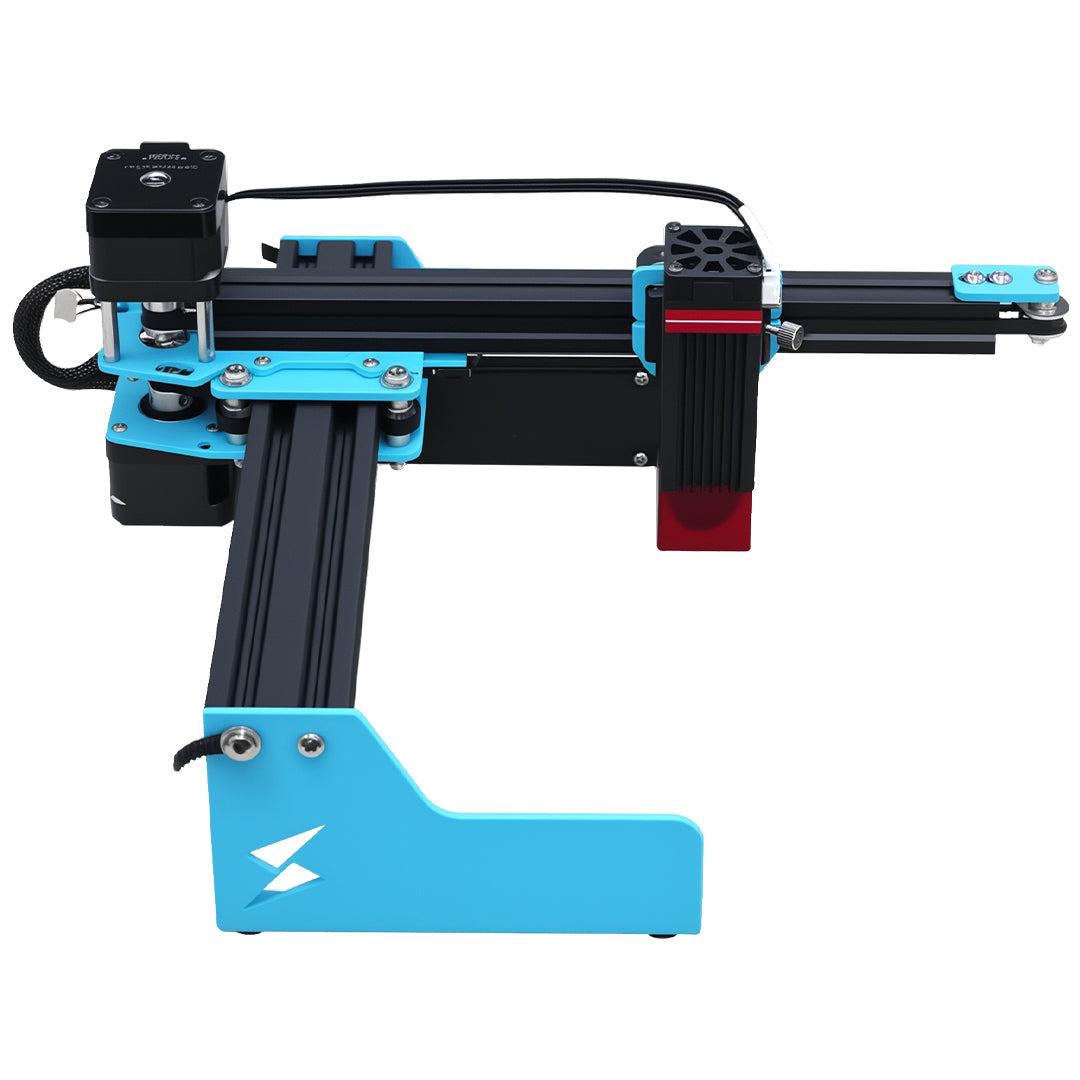


The Tyvok A1 Mini is a great budget galvo laser engraver, but like any machine, you might run into some issues, especially when you're just getting started.
I've helped dozens of A1 Mini owners troubleshoot their machines, and these are the most common problems I see, with step-by-step fixes you can do yourself.
If you're having an issue with your A1 Mini, you're probably not alone — check this guide first before contacting support.
2. Engraving is Out of Focus / Blurry
Symptoms: - Engraving looks fuzzy or blurry - Some areas are darker than others - Poor contrast
How to Fix It:
This is the most common problem with beginners, and it's usually just incorrect focusing.
Step 1: Re-do your focusing carefully: - Lower the bed until the laser head just touches the focusing gauge - Make sure the material itself is flat — warped material will be out of focus in spots - Check that the bed is locked securely after adjusting
Step 2: If it's still blurry, check the lens: - Is the lens clean? Fingerprints or dust on the lens cause blurriness - Clean the lens gently with lens cleaning fluid and a microfiber cloth - Don't press too hard — you can scratch the coating
Step 3: Check your speed and power settings. If you're going too slow with too much power, you can get burning that looks blurry. Try increasing speed and decreasing power.
4. Engraving is Too Faint / Not Deep Enough
Symptoms: - You can barely see the engraving - The depth is less than you expected
How to Fix It:
Step 1: Check your focus first — out of focus = faint engraving. Go back and re-focus.
Step 2: Increase power or decrease speed. If you're going too fast with too little power, you won't get deep engraving.
Try this: 50% power, 500 mm/s instead of 20% power at 2000 mm/s — you'll get deeper engraving with less charring.
Step 3: Multiple passes. For deeper engraving on hard materials, do two or three lighter passes instead of one heavy pass. This gives better results.
Step 4: Clean your lens. A dirty lens reduces laser power output.
6. Machine Makes Strange Noises
Symptoms: - Grinding or clicking noises when moving - Unusual sounds during operation
How to Fix It:
Step 1: Clean the galvo mirrors and bearings. A little bit of dust can cause noise — gently clean everything.
Step 2: Check that all screws are tight. Shipping can loosen things. Go through and tighten all the visible screws on the frame and galvo assembly.
Step 3: If it's still noisy, add a tiny drop of light machine oil to the bearings. Don't use too much — you don't want oil getting on the mirrors or lens.
8. Burning or Charring Too Much
Symptoms: - Engraving has a lot of black smoke residue - Material is burning more than you want - Edges are charred black
How to Fix It:
Step 1: Get an air assist. Air assist blows away the smoke and reduces charring dramatically. This is the #1 upgrade you can make to your A1 Mini.
Step 2: Increase speed, decrease power. Faster passes with lower power give cleaner results than slow heavy passes.
Step 3: Use masking tape over the material before engraving. The tape catches the smoke residue and keeps your material cleaner. Just peel it off when you're done.
Step 4: Let the laser cool between passes if you're doing multiple passes. Overheating causes more charring.
10. Software Crashes When Sending a Job
Symptoms: - LightBurn crashes when you start engraving - Job won't send to the machine
How to Fix It:
Step 1: Simplify your design. Very complex designs with thousands of vectors can overwhelm the buffer on the A1 Mini. Try reducing the number of points.
Step 2: Split large jobs into multiple smaller jobs. Send them one at a time.
Step 3: Update LightBurn to the latest version. Older versions have bugs that are fixed in newer versions.
Step 4: Try using LaserGRBL instead to see if it's a software issue. If it works in LaserGRBL but not LightBurn, you know the problem is in LightBurn settings.
12. WiFi Doesn't Work / Can't Connect
Symptoms: - Can't connect to the machine via WiFi - Connection drops constantly
How to Fix It:
Step 1: Make sure you're connecting to 2.4GHz WiFi. Most laser controllers don't support 5GHz WiFi. Check your router settings — most broadcast both, make sure 2.4GHz is enabled.
Step 2: The machine needs to be on the same WiFi network as your computer. It can't connect through guest networks or VPNs usually.
Step 3: If it still doesn't work, just use USB — it's more reliable anyway for most beginners.
Preventive Maintenance to Avoid Problems
A little maintenance goes a long way with your A1 Mini:
- Clean the lens regularly — after every 10-20 hours of use
- Keep the machine clean — brush out dust and debris
- Check tightness of screws every few months
- Keep the galvo mirrors clean — don't let dust build up
- Store in a dry place — moisture can damage electronics
Check the machine before buying
For the material and workflow discussed above, review TYVOK A1 Mini configurations and purchase options after testing the exact project materials and setup.