

Lock the digital jig reference before changing names, but check laser output and machine origin separately. A locked shape can still be part of an enabled output layer. Likewise, preventing movement in the editor does not prove that the physical jig is seated correctly.

A real LightBurn user discussion about locking project elements includes jig-template use. The current Arrange Menu reference documents shape locking as protection against editing. It does not describe locking as a machine safety control.
Keep three records beside the name field
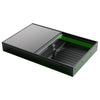
In a saved working copy, identify the outline that represents the jig, the artwork that should mark, and the documented physical reference used by the machine. Give the reference a recognizable name. Put non-output construction geometry in the appropriate documented tool-layer workflow or otherwise explicitly exclude it from output, then verify the preview.
Record the reference's position and dimensions before locking. Change one sample name and deliberately try selecting and moving the personalization without disturbing the outline. Undo the trial movement, save, reopen and compare the recorded values. This exercise checks the editing workflow without energizing the laser.
| P2 preparation control | Its purpose | What it cannot establish |
|---|---|---|
| Shape lock | Prevent accidental reference edits | That the layer will not output |
| Output exclusion | Keep construction outline out of the job | That the physical jig is aligned |
| Documented origin check | Relate approved artwork to the setup | That a changed name fits its intended area |
Test the longest name, not only the first one
Suppose one order contains “Ava” and “Alexandra.” Keeping a reference fixed protects alignment, but the longer text may exceed the allowed personalization width. Save a copy with the widest expected name and inspect it against the approved bounds. Adjust the artwork according to the customer's accepted design rules rather than moving the jig outline to make the text appear centered.
If the reference needs a legitimate update, unlock it intentionally, save a new template revision and repeat the position/output checks. Do not silently reuse the old approval photograph after changing the reference. Keep the original template available to compare what changed.
For a cover job, establish the approved logo size and position before creating this reference. If the actual object requires a different supported placement, the large-object placement proof addresses that physical setup decision; locking the drawing cannot replace it.
Apply this in the supported P2 workflow
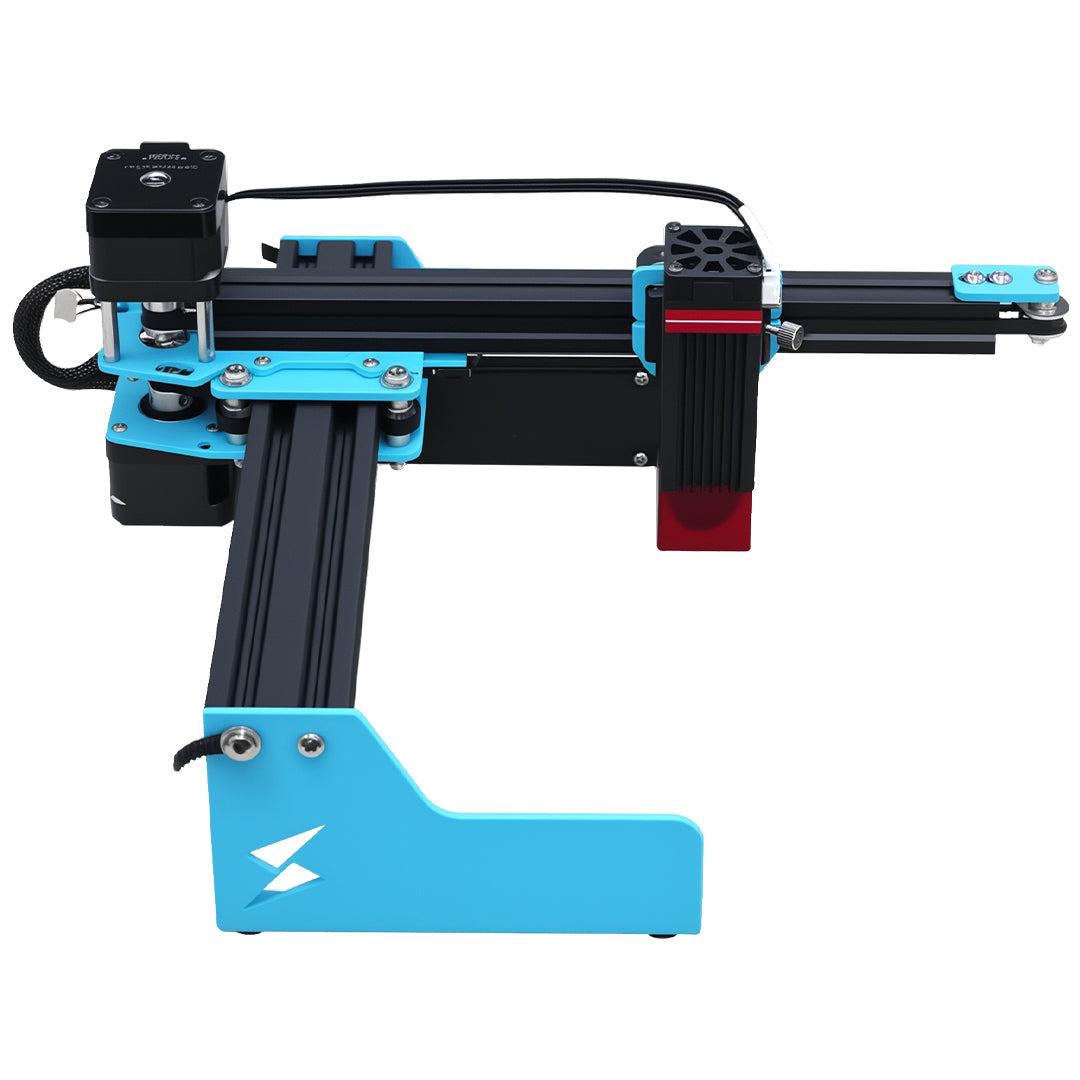
The TYVOK P2 serves compact personalization tasks. Use the supported software version and the current machine instructions for framing and origin. Before any supervised material proof, confirm a documented compatible blank, stable placement and the required protective and extraction provisions. A neat editor view is only one part of release.
Will locking stop the laser from engraving the jig outline?
No. Inspect layer output and the final preview independently. If the construction outline remains in the planned marking path, correct that before proceeding.
Can I share one locked template across different fixtures?
Only after separately validating each fixture's geometry and documented reference. Similar-looking fixtures may place the blank differently; keep their template identities distinct.