

Inspect the source image's pixel values before changing laser settings. A gradient-looking file may already contain only black and white dots, or may have lost its intermediate gray values during export. Compare it with a newly created grayscale control at the same size to separate an input problem from image processing.

In a March 2026 LightBurn forum case, a user reported threshold-like results across image modes and obtained a different result with a freshly generated GIMP gradient. That case supports checking the input first; it does not establish an A1 Mini hardware fault or a universal image-mode defect.
Two files, one controlled comparison
Open the suspect file in an image editor and inspect it at actual pixel scale. Sample several positions across the supposed transition. In an ordinary 8-bit grayscale representation, intermediate tones should have values between black and white. A repeating pattern of only dark and light pixels may be dithering, even when it looks smoothly shaded from a distance.
Create a separate control with a simple black-to-white ramp, save it in an image format preserving grayscale values, and reopen that saved file. This reopen matters: it tests the export, not merely the image editor's unsaved appearance. Use the same dimensions and avoid stretching one image differently from the other.
| A1 Mini image proof | Suspect image | Control image |
|---|---|---|
| Saved pixel values | Sample several positions | Confirm intermediate values |
| Imported dimensions | Record width and height | Match those dimensions |
| Processing choice | Record current mode | Use the same mode initially |
| Preview result | Note abrupt transition or dots | Compare the same region |
Read the difference before changing anything else
If the suspect source is already binary and the control is not, return to the earlier export step. Changing machine power cannot recreate missing pixel information. If both saved sources contain intermediate values but their previews differ, compare image adjustments, transparency handling, and processing choices in the receiving application.
A dithered preview can legitimately consist of black and white dots while representing perceived tones through dot density. Do not judge it only by the absence of gray-colored screen pixels. Examine whether the dot distribution changes across the ramp and whether the selected processing method matches the intended task.
If the input already contains an intentional dot pattern, avoid applying another uncontrolled transformation; inspect the pre-dithered image workflow. If the desired gradient is actually a feathered photo boundary, create the composited photo fade before import so the receiving application gets the intended pixels.
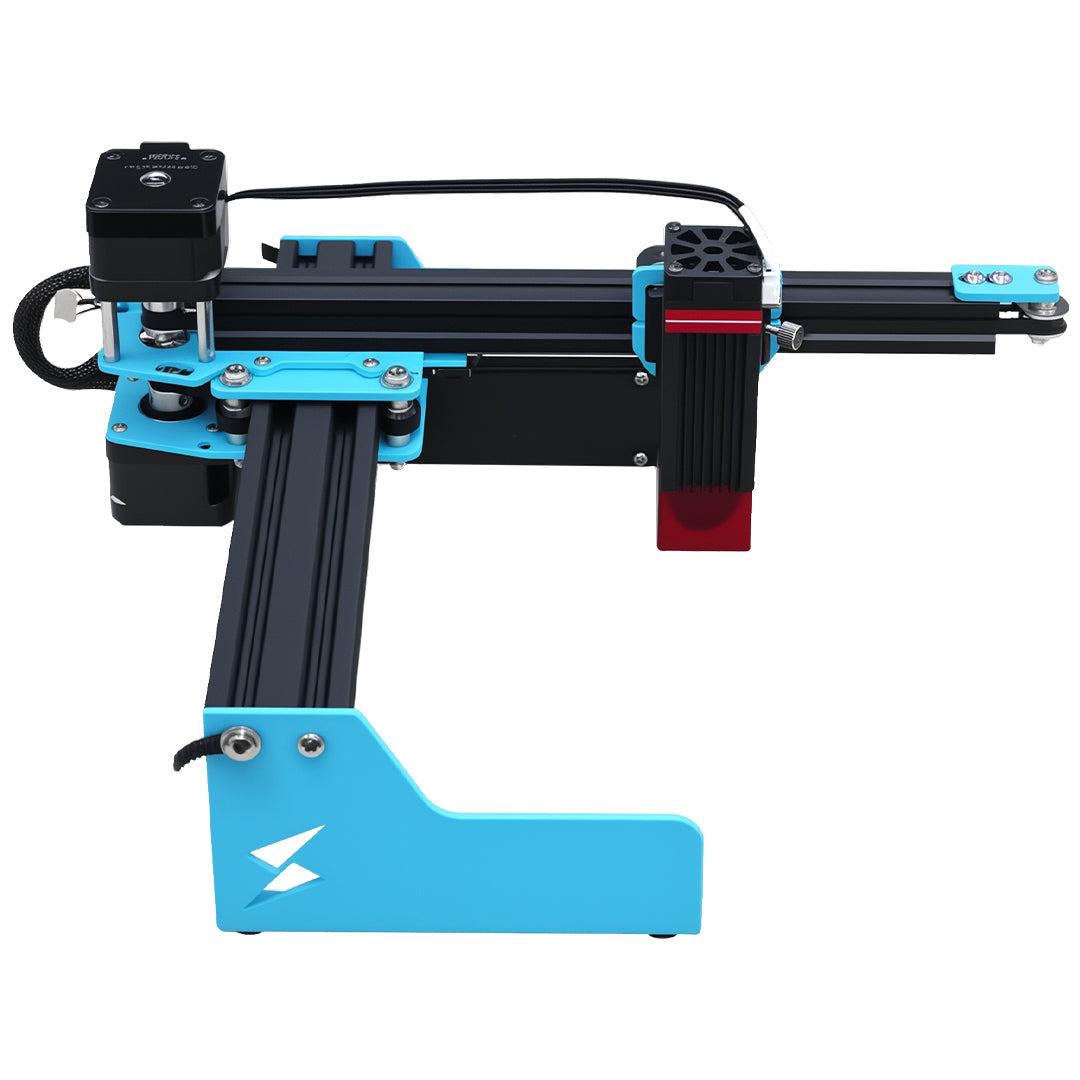
The A1 Mini listing describes a compact blue-diode platform and a 120 × 130 mm work area. It does not promise smooth grayscale on every material. Keep this diagnosis unpowered until the file and preview are understood; physical evaluation then requires documented compatible material and a verified supported processing workflow.
Does a black-and-white preview mean my machine cannot engrave photos?
No. Some image methods represent tone with dot density, so the preview can be binary by design. First establish what the source contains and what the selected method is supposed to produce. The material's response remains a separate question.
Should I increase power when the middle of the gradient disappears?
Not as the first step. Check whether intermediate source values survived export and how the preview processes them. Only after those checks should a controlled material-specific comparison evaluate physical settings; it cannot restore data absent from the file.