

You can keep a twelve-row master and output a smaller selection, but count the actual text values as carefully as the selected shapes. Work on a copy, select the intended rows, and verify Preview, origin and variable-text advancement before starting the shortened job.

A September 16 maker question asks how to run five, six, eight or ten rows from one twelve-row variable-text array. The response suggests ungrouping and selecting only the required objects. That solves selection, but production work also needs a check of which values those objects will receive.
Separate physical rows from data positions
Suppose twelve labels use offsets zero through eleven. Selecting the first six usually means selecting the objects with offsets zero through five; it does not tell the software to rewrite every other data setting. Selecting rows seven through twelve is a different choice, even though it produces the same number of labels.
LightBurn's Variable Text documentation explains that each object's Offset combines with the Current value. Record the first and last expected output values before making the selection. Use Preview to inspect the substituted text, including long names or unfamiliar characters.
Six-row check for an X1S Pro run
| Item | What must match the order |
|---|---|
| Selected objects | Six complete labels, including any intended outlines |
| Data values | Correct first, last and intermediate entries |
| Position | Selection remains aligned with loaded blanks |
| Advancement | Next run begins at the next intended record |
| Remaining rows | No unwanted engraving or cutting in Preview |
The official laser-control option is Cut Selected Graphics. Forum wording or older interfaces may differ; do not confuse printing a page with sending a job to the laser. Check the control in your installed version and confirm its effect in Preview.
Also check Use Selection Origin. A smaller selection can change the origin calculation when this option is enabled. If you are returning to positions in an existing fixture, preserve the intended coordinate reference and frame the selected job before processing. The relationship between center pitch and edge gap helps check that the physical blank spacing still matches the file.
Prevent the next run from skipping records
If Auto-Advance remains configured to advance twelve positions, a six-row run can leave the next Current value different from your intended sequence. Inspect Advance By, Current and the individual offsets together. Do not assume that selecting six objects automatically changes a twelve-item advancement setting.
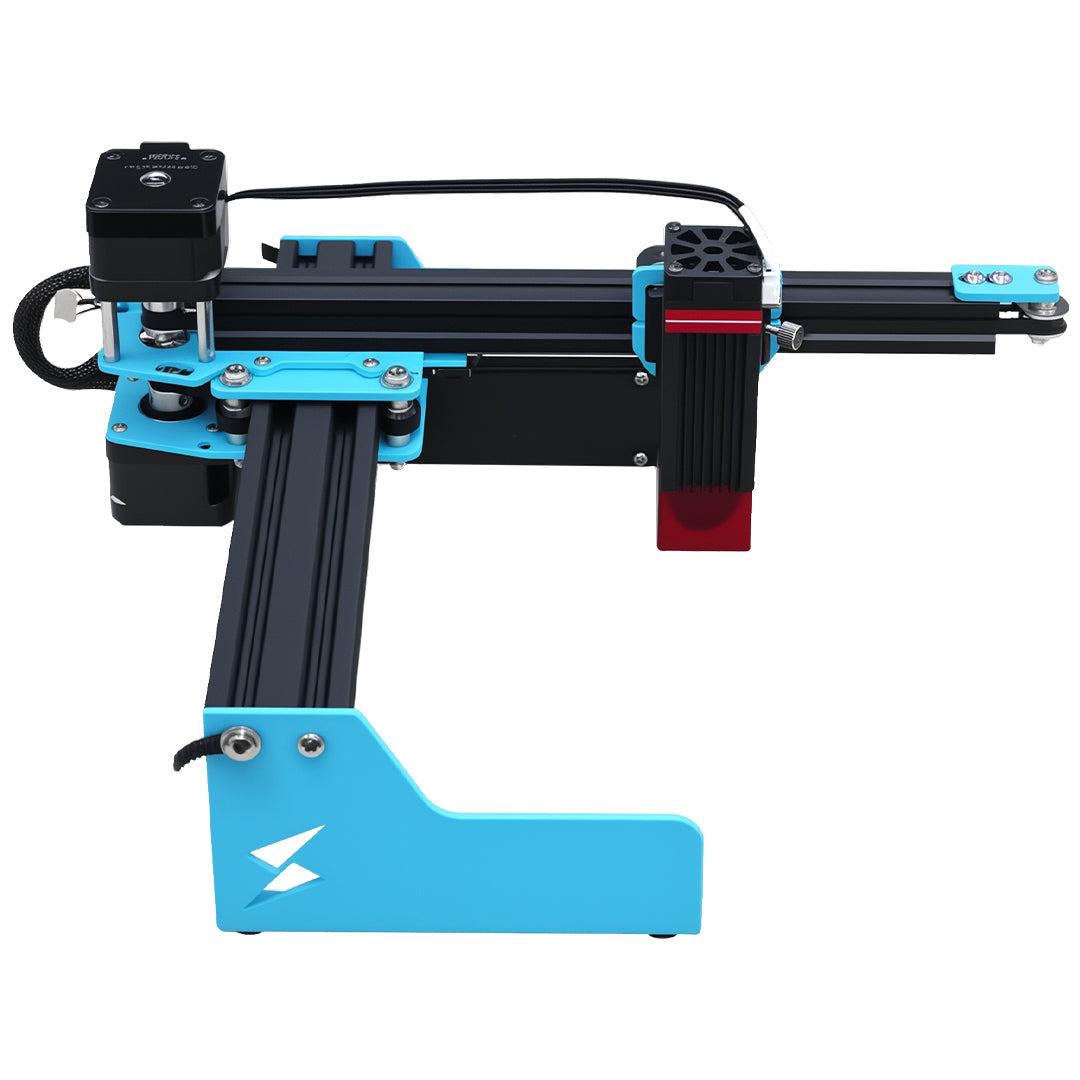
The TYVOK X1S Pro product page describes large-format workshop use and LightBurn support. Neither feature automatically validates a customer-data sequence. Keep the order list beside the preview and record the last accepted physical label.
Do I have to delete the unused six rows?
No, provided selected-object output behaves as expected in your setup. Keep the master intact and verify that unused rows are absent from Preview. If deletion is simpler for a particular job, do it only in a separately saved copy.
Can the correct selection still belong to the wrong page?
Yes. In a multipage project, identify the intended page before selecting rows. A page-specific operator handoff should name both the artwork and the expected quantity, rather than relying on a highlighted selection alone.