

A clipping mask may hide excess vector artwork without removing its underlying paths. If that excess returns after import, preserve the source file and create a working copy with the unwanted geometry actually trimmed or removed. Inspect the receiving application's output preview rather than relying on the source canvas appearance.

A vector-pattern clipping discussion describes this problem with a decorative pattern. It is an older specific case, so it does not prove that every current importer rejects masks. Current xTool editor guidance also treats masking and SVG export as distinct operations. Verify what survives in your exact workflow.
Find out whether the extra lines are real output
Start with a small duplicate of the affected motif. Open the transferred file in the application used to prepare the X1S 2026 job. Inspect both its editable geometry and processing preview. If outside paths appear in the preview, they are a production concern even if a mask hid them elsewhere.
Keep an outline of the intended visible region as a reference. Temporarily separate that outline from the imported pattern so you can select the unwanted paths. Work on a duplicate because clipping can conceal valuable original design elements that you may want for a different panel later.
For example, a 100 mm-wide pattern may be shown through an 80 mm-wide window. With the window centered, 10 mm of pattern lies outside each side. Deleting the mask alone reveals those strips; it does not crop them. The correct transfer needs the intended central geometry, not just an 80 mm bounding rectangle placed above a 100 mm pattern.
Choose the right transfer result
| Intended output | Appropriate working-copy goal | What must remain separate |
|---|---|---|
| Vector line pattern | Remove actual outside segments | Outer panel boundary |
| Filled vector motif | Preserve correct closed regions | Holes and negative spaces |
| Raster-only image | Export a finished cropped bitmap | Any cutting contour |
| Reusable source design | Keep the untrimmed master | Final production copy |
For vectors, use the source editor's suitable geometric cut/intersection operation or documented receiving-editor tools. One possible route is to cut the pattern with a boundary and remove the outside result. Check actual retained pieces, because open strokes and closed filled regions can behave differently.
Use controlled segment trimming when individual crossings need repair. If the transferred pattern also contains excessive anchors, simplify a separate copy and compare it only after establishing which geometry should exist. Simplification cannot decide the intended crop for you.
Keep the large-panel job inspectable
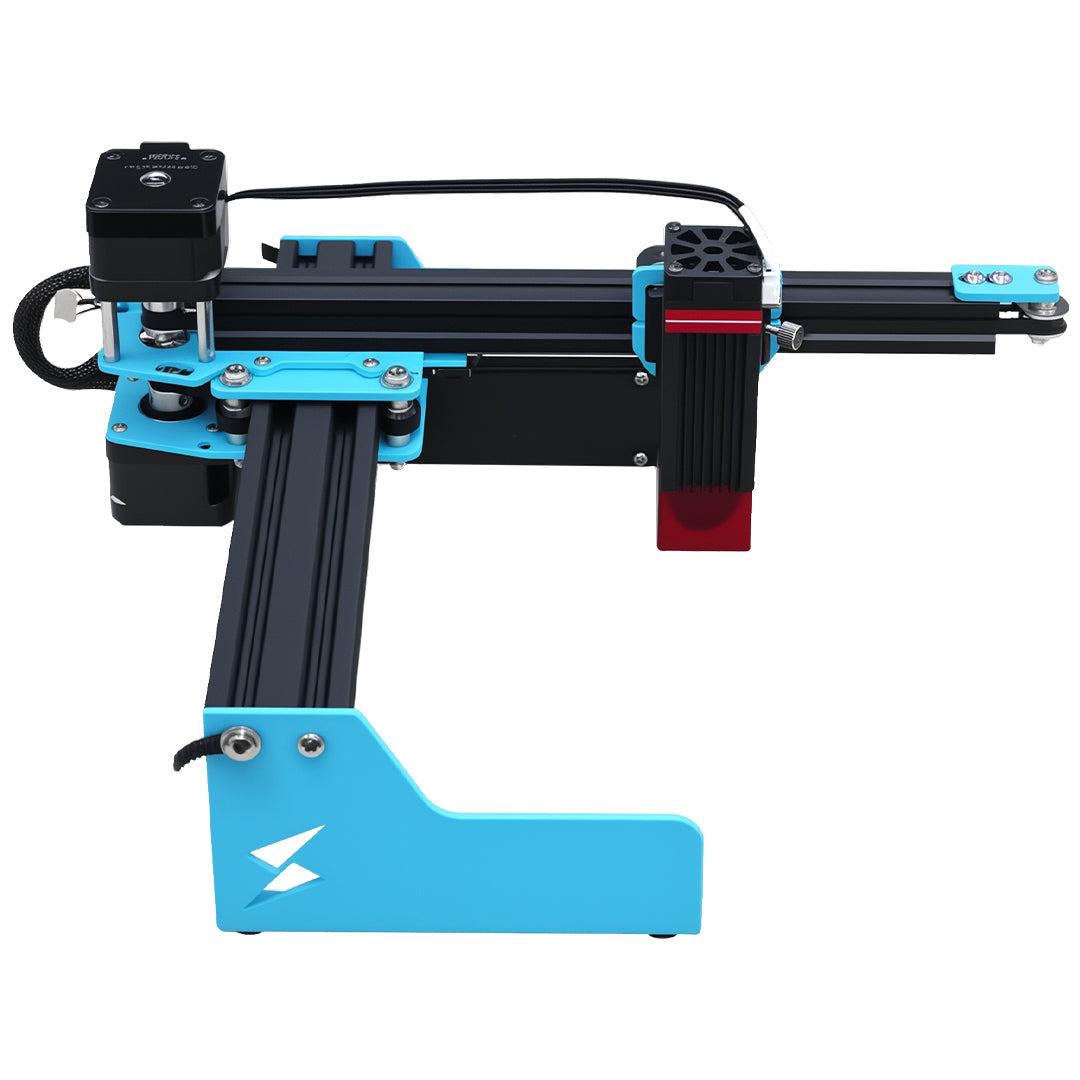
The TYVOK X1S 2026 listing presents large-format work with an 800 × 800 mm starting area and an extension path; actual configuration and supported software still need confirmation. Repeat a corrected motif only after checking one instance. Preview the complete layout for outside fragments and duplicate boundaries before testing documented compatible stock. No mask correction validates the laser settings or material composition.
Can I flatten everything to a PNG to avoid mask problems?
That can preserve appearance for a raster engraving, but it discards vector cutting geometry. Keep a separately verified cutting contour if the project needs both engraving and cutting.
Why is deleting the mask not the same as cropping?
A mask controls visibility. Removing it can reveal the hidden parts of the original artwork. A geometric crop changes which paths remain; compare the final output rather than the names of the commands.
Check the machine before buying
For the material and workflow discussed above, review TYVOK X1S 2026 configurations and purchase options after testing the exact project materials and setup.