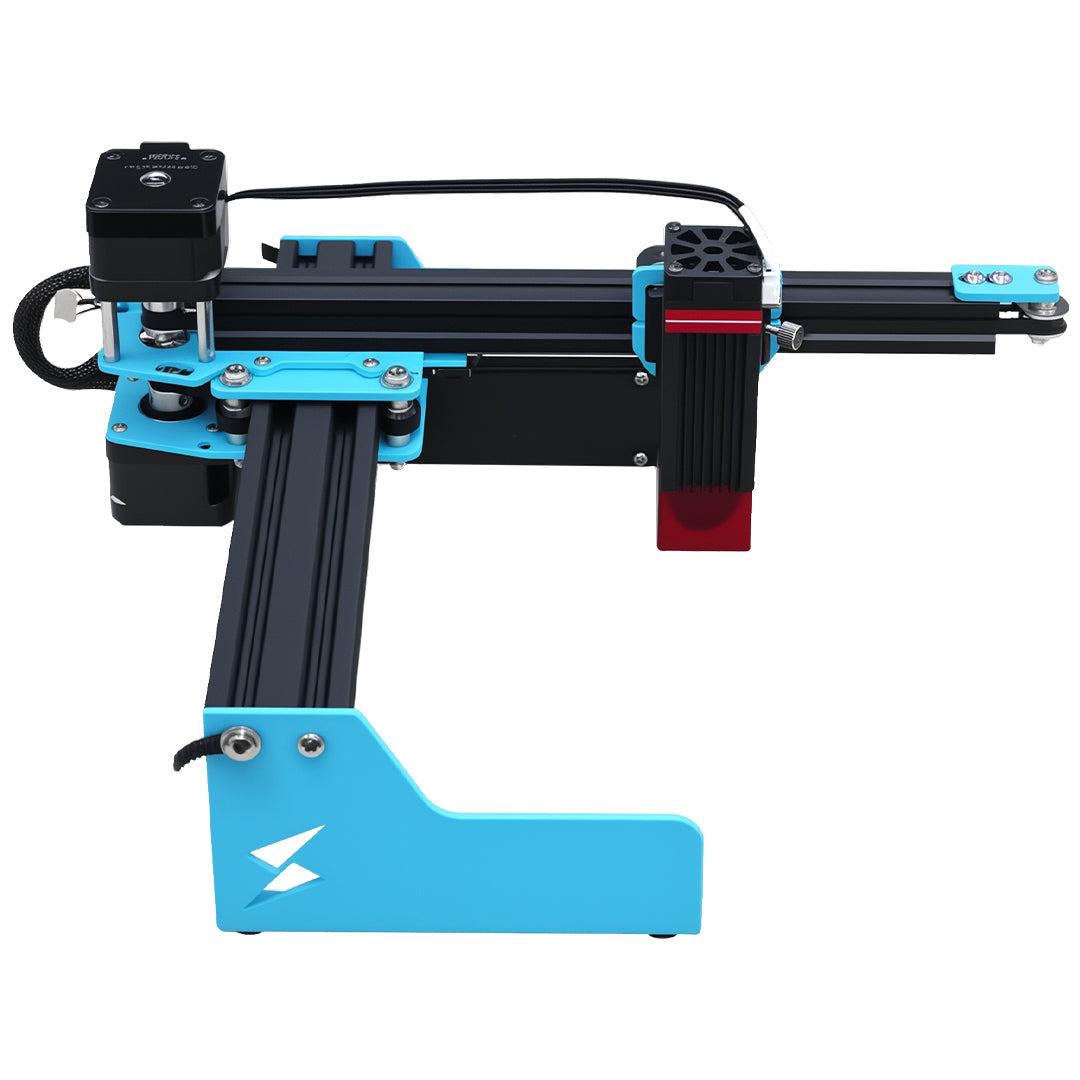


If an SVG import stops with an “unexpected entity” error, preserve the original file and obtain a corrected export before changing laser settings. The application may be failing to read the document itself. Power, focus, and material settings cannot repair unreadable file syntax.

In the LightBurn 2.2.00 RC1 early-access discussion, staff reproduced an unexpected mdash entity error. That specific report does not mean every generated SVG is faulty or every failed import has the same cause. It does justify keeping the exact error wording when troubleshooting an X1S 2026 artwork file.
Separate file reading from machine communication
Note whether the message appears immediately when opening or importing the file, before a job is sent. Save a screenshot of the error and record the exporting application, importing application, and their versions. Ask the designer or generator provider for an SVG that opens successfully in the intended receiving application.
Do not remove every ampersand or punctuation mark from the file. A search-and-replace across XML can damage unrelated information, and text that looks unusual may be valid in a different context. If you understand SVG editing, work only on a copy and validate the result; otherwise a corrected export is the better handoff.
| Detail to preserve | Why the next person needs it |
|---|---|
| Full error text | Distinguishes an entity issue from other failures |
| Original SVG | Allows the author to reproduce the same input |
| Export source and version | Identifies the document-producing step |
| Import application and version | Defines the receiving environment |
| Intended dimensions | Helps detect changes after repair |
A screenshot of the intended appearance is useful, but it is not a replacement for the original vector file. Keep both. If the file came from a randomized design tool, also preserve the settings described in saving a jigsaw pattern seed, because a newly generated file may contain different geometry.
A successful opening is the next checkpoint
After receiving the corrected file, compare the complete design with the reference image. Check text, closed shapes, holes, and overall dimensions. Use an SVG reference-square measurement to establish scale rather than accepting a visually plausible size.
The TYVOK X1S 2026 page describes its current machine and software positioning; confirm your selected configuration and supported application. Early-access software discussion is evidence of a file problem, not a recommendation to upgrade a working production installation.
If the file imports but the machine later stops replying, that is a different investigation. Recording Not Responding versus Disconnected status starts with making the machine safe before collecting communication evidence.
Questions about failed imports
Does opening the SVG in a browser prove my laser software can read it?
No. Different applications can handle document features differently. The useful acceptance check is opening the corrected file in the actual receiving application and confirming that the geometry survived.
Should I convert the entire design to a picture?
Only if the intended operation truly needs a picture. Raster conversion can remove usable cutting paths. For a panel with slots or other vector cuts, request a corrected vector export instead of accepting a visually similar image.