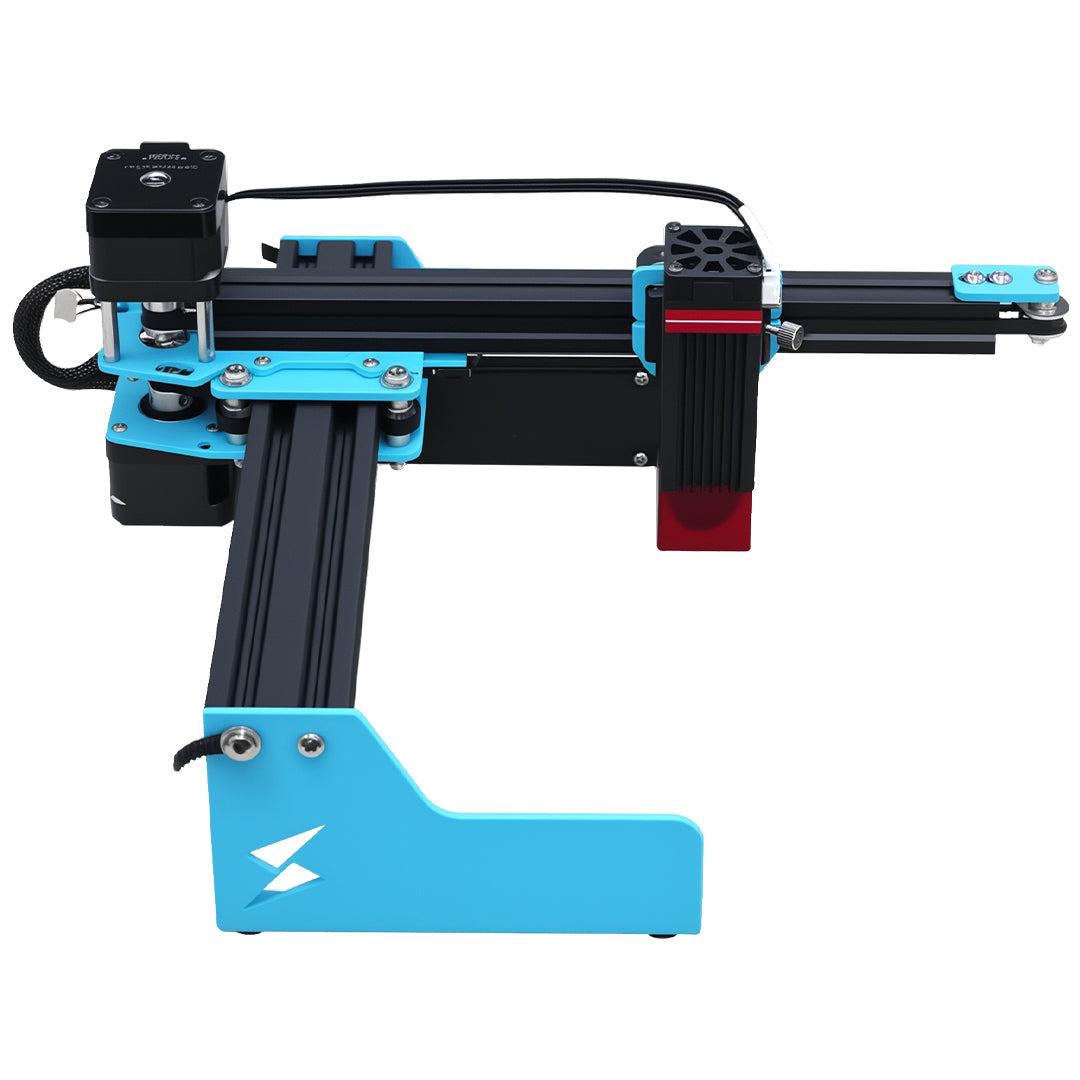


Quick answer
To use Tyvok P2 Ultra for metal engraving, prepare the artwork, place the metal part, preview the position with red light, focus the beam, run the engraving, inspect the result, and save the workflow for repeat jobs. This process turns the machine from a one-off engraving tool into a practical small-business metal marking station.
The strongest use cases are metal-first: jewelry, metal cards, serial plates, tool labels, industrial tags, and small production parts.
Who this workflow is for
This guide is for buyers who want industrial-looking metal results without a complicated factory setup. It fits custom shops, Etsy sellers, gift studios, small manufacturers, repair shops, and service bureaus that need clear marks and repeatable positioning.
1. Prepare the artwork
Start with clean vector artwork, text, serial numbers, QR-style layouts, or logo files. For paid orders, confirm spelling, scale, orientation, and customer approval before placing the material.
Good first file types and layouts:
- Logo mark
- Nameplate
- Serial number
- Simple line artwork
- Product ID layout
- Brand mark on a metal card
2. Place the metal part
Place the metal part inside the marking area and keep it stable. For repeated orders, use a fixture or consistent placement reference. This is where a desktop fiber galvo workflow becomes useful for small business: the goal is not only to mark one item, but to make the next item easier.
3. Preview with red light
Red-light preview helps show where the artwork will land before engraving. This lowers alignment risk, especially for small metal tags, jewelry, cards, and parts with holes or edges.
Use red light to check:
- Position
- Orientation
- Border clearance
- Fixture alignment
- Repeated layout consistency
4. Focus the beam
Focusing is part of the operating workflow. It turns rough placement into a controlled mark. Align visually, focus clearly, and engrave only after the preview and material position are confirmed.
5. Engrave and inspect
Run the job after preview and focus are confirmed. Inspect the result for readability, contrast, placement, and whether the mark meets the product goal.
For business use, inspect:
- Text clarity
- QR or serial readability
- Logo sharpness
- Placement consistency
- Surface finish
6. Repeat the same workflow
The difference between a hobby engraving attempt and a production workflow is repeatability. Save artwork, placement notes, material notes, and settings direction so the same customer format can be repeated later.
This is especially important for:
- Repeat brand orders
- Serial plates
- Jewelry collections
- Metal card batches
- Replacement part IDs
Common mistakes to avoid
Most early engraving problems come from workflow issues rather than the machine itself. Control the process before trying to run complex customer jobs.
Common mistakes:
- Starting with customer material before running a sample
- Skipping red-light preview
- Changing material, artwork, and settings at the same time
- Using artwork that is too small to inspect clearly
- Forgetting to record successful settings
- Treating every order as a new setup instead of building reusable templates
P2 Ultra becomes more valuable when the user builds a repeatable workflow around it.
Workflow by product type
Different products need different setup discipline.
Metal cards
Metal cards need clean logo placement, readable text, and consistent edge spacing. Use a simple fixture or repeatable placement reference so every card in the order looks intentional.
Jewelry and pendants
Jewelry needs careful placement because the engraved area is small and highly visible. Red-light preview is useful for checking the mark before firing. For curved objects, use a rotary workflow after compatibility is confirmed.
Industrial tags and plates
Industrial tags usually need repeated layouts with changing serial numbers, QR-style codes, or part IDs. Build a template first, then use red-light preview and sample inspection before production.
Tools and small parts
Tool and part marking is functional. Prioritize readability, placement, and traceability over decorative detail. When possible, test on a sample part or noncritical surface first.
Related P2 Ultra guides
If you are still preparing your first station, start with the
Tyvok P2 Ultra setup guide. If your goal is repeat orders, continue with
batch metal engraving for small business and industrial tag laser marking.FAQ
Can a beginner use a fiber galvo laser engraver?
A beginner can learn the workflow if the setup is presented step by step: prepare artwork, place material, preview, focus, engrave, and inspect. P2 Ultra should still be treated as a professional metal marking tool, not a casual craft toy.
What files should I prepare?
Prepare clean logos, text, serial number formats, QR-style layouts, or vector artwork. The best first tests are simple and easy to inspect.
Can I repeat the same job later?
Yes. Repeatability is one of the main reasons to build a fixture-based workflow. Save artwork, placement logic, and material notes so future orders can be produced with less setup time.
What should I test first?
Start with sample metal cards, tags, or plates before moving to customer products. This gives the buyer a controlled way to check placement and finish.
Where should I go after the first successful mark?
Move from one-off testing into saved product formats. Build templates for repeat products such as metal cards, jewelry tags, industrial plates, or part labels, then use those templates to reduce setup time on future orders.
Next step
Use P2 Ultra as a daily metal engraving workflow: import, align, focus, engrave, inspect, and repeat.
View the Tyvok P2 Ultra product page, request a sample job, or see the current launch offer.Related TYVOK P2 Buying Resources
Use these TYVOK resources to compare machine fit, project workflow, and buying options before choosing a laser engraver.