

A1 Mini Not Connecting to LightBurn: A First-Session Recovery Tree
Begin below LightBurn: prove power, a data-capable cable, and the operating system's device entry. Then close competing control programs and verify the current A1 Mini profile, port, permission, and firmware guidance one branch at a time.

Begin at the operating-system device list
LightBurn compatibility is a major purchase criterion, but first-session port and cable failures are common.
Observation: A1 Mini powers on but no device appears in the operating-system list. Controlled test: use a verified data cable and direct port before opening LightBurn. Interpretation: appearance after the cable swap identifies a data-path issue; continued absence keeps diagnosis below the application. Action: follow current official driver guidance rather than changing profiles.
Follow the branch you can observe
| Observed outcome | Next branch | Do not do |
|---|---|---|
| No OS device appears | Known data cable and direct port | Install random drivers |
| OS sees device, app does not | Permission and port ownership | Change machine settings |
| Port opens, no response | Profile and communication values | Guess baud/profile repeatedly |
| Connection drops | Hub, cable strain, sleep settings | Start material output |
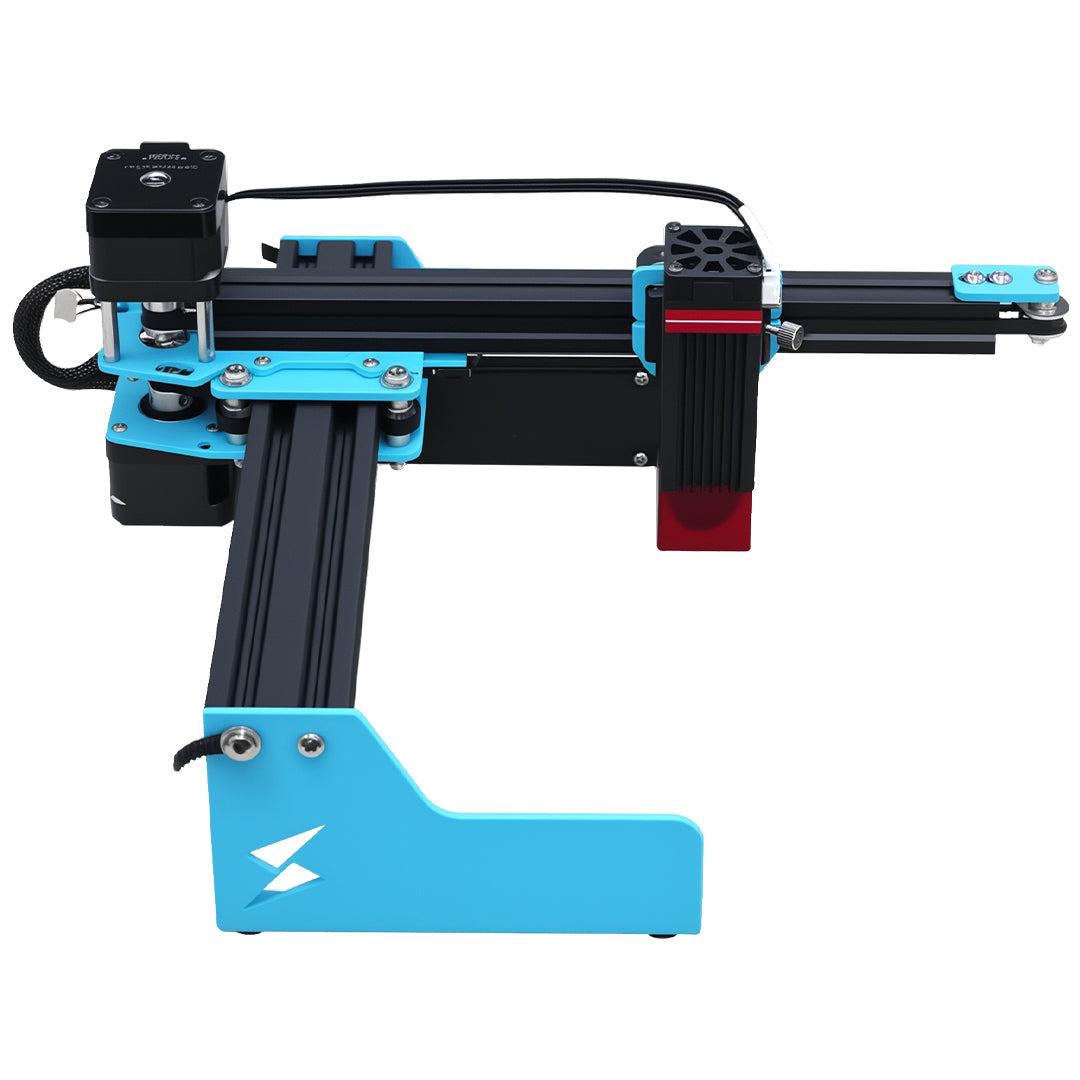
The live A1 Mini page currently messages LightBurn and LaserGRBL support. Compatibility does not guarantee an arbitrary cable, driver or profile is already correct.
Example: power works but data does not
- Power down safely and remove unneeded hubs.
- Use a verified USB data cable, not a charge-only lead.
- Record the device entry in Windows or macOS before opening software.
- Close LaserGRBL, TYVOK Studio and any serial monitor.
- Apply only current TYVOK/LightBurn guidance, reconnect, then run a non-output boundary check.
Second outcome: the OS sees the device but LightBurn cannot open it. Close LaserGRBL, TYVOK Studio, and serial tools, then retry the documented port and profile. If connection opens but commands fail, verify profile, origin, units, and firmware guidance one at a time.
End with a non-output boundary check
A successful connection ends with a non-output frame or boundary check. It does not authorize immediate material output.
The A1 Mini product page confirms current software messaging. After connection is stable, Round Blank Near the Edge? Calculate Clamp Clearance handles the separate physical-fit check.
Connection questions before the first frame
Why does the cable charge but not connect?
Some cables carry power without data conductors.
Can two laser programs share the port?
Usually they compete for exclusive access; close the others during diagnosis.
Should the first successful connection immediately engrave?
No. Confirm profile, units, origin, framing and safety with a non-output check first.
Connection success ends at a safe preview
Record the cable, OS device, port, profile, and observed recovery branch. Material output waits for framing, origin, eligibility, and workshop safety checks.