

If Save, OK or Finish falls below the screen in a LightBurn dialog, pause the setup and inspect display scaling. Seeing changed values is not proof that those values were saved. Recover access to the confirmation control, close the dialog normally and reopen it to verify the result before releasing a production job.

A Windows 11 touchscreen report describes exactly this problem with LightBurn 2.1.04. Staff suggested adjusting the application's display scaling, but the user subsequently reported that the elongated dialog persisted. The report concerns another manufacturer's machine; it does not establish an X1S Pro hardware defect or a guaranteed scaling fix.
Separate visibility from persistence
There are two questions to answer. Can you reach the button, and did the software retain the intended change? Solve them in that order. A dialog disappearing after a key press does not tell you which action was accepted, particularly when its lower controls were invisible.
With no job running, note the current screen resolution, operating-system scaling and LightBurn version. Capture the dialog showing which control is inaccessible. In LightBurn, inspect the Display tab in Settings, where staff directed the reported user. Adjust only what you can identify and record the previous value so the comparison remains understandable.
If the control becomes visible, use its labeled button. Reopen the same dialog and compare the stored values with your intended values. If it remains inaccessible, provide the screenshots and configuration details to LightBurn support rather than repeatedly accepting an unseen dialog.
Release checks for an X1S Pro workstation
| Setting being changed | Evidence required before use |
|---|---|
| Material-test parameters | Reopened values match the intended test |
| Optional camera setup | Relevant setup completes visibly and reopens correctly |
| Application display scale | Required dialogs fit and remain readable |
| Saved job settings | Reopened project matches the approved version |
Avoid changing several display variables simultaneously. Otherwise, an apparently improved window leaves you unsure which change mattered. Keep the machine idle during this interface check and use a nonproduction file for any later confirmation of a revised setup.
Keep the workstation record with the job
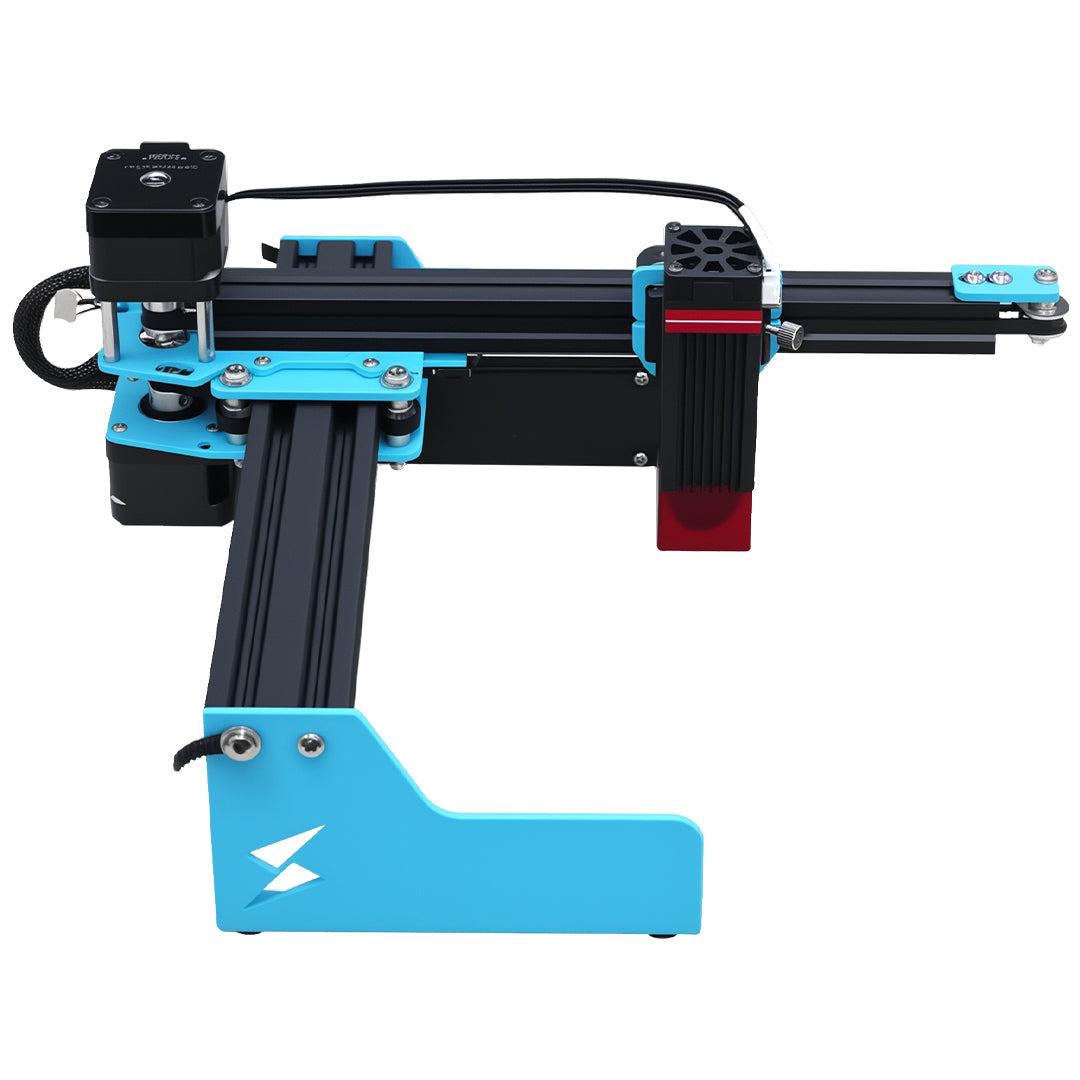
The TYVOK X1S Pro is presented as an 800 × 2000 mm large-format diode workflow with LightBurn support. Its useful panel area makes repeatable setup valuable, but it cannot establish whether an application dialog saved correctly. Accessories and controller behavior still depend on the actual configuration.
Record the project filename, software version and confirmed values in the handoff note. If several LightBurn windows are open, resolve which window retains the preferences before treating a reopened value as authoritative. A future macOS compatibility notice is a different issue from a hidden confirmation control.
Is pressing Enter enough when I cannot see Save?
Do not rely on it as proof. The reported user found Enter unreliable across the affected dialogs. Use a visible, identified confirmation control and verify the saved result by reopening the dialog.
Does a cut that looks normal prove my changed settings were retained?
No. A familiar-looking result may have used earlier values. Inspect the saved settings directly and compare the actual project version. Only after that check should a controlled sample be used to validate the intended process.