

If a nested letter loses its center, restore the original layout and check whether the interior contour moved independently of the outer contour. In LightBurn 2.1 or newer, Quick Nest provides Lock Inner Objects for this relationship. A dense sheet layout is unacceptable if its individual parts no longer have the intended holes.

The official Quick Nest demonstration specifically uses letter interiors and a small eye detail to explain this problem. That is direct workflow evidence, not a measured claim that every shop will save a particular amount of material.
Count holes before using the nesting command
Make a saved copy of three simple parts: an O-shaped ring, a B-shaped letter and a solid rectangle. Record one interior for the O, two for the B and none for the rectangle. This small exercise makes an incorrect result easier to see than a full sheet of decorative lettering.
Use the documented inner-object control or an appropriate grouping workflow for the installed version, then compare the transformed parts with the untouched copy. Each hole must remain with its parent and retain its intended position. Grouping all parts into one object is a different operation and may prevent the individual arrangement you wanted.
| X1S 2026 layout check | Before nesting | After nesting |
|---|---|---|
| Part identity | Three named parts | The same three parts |
| Interior membership | O: one; B: two; rectangle: none | Same counts and relative placement |
| Material direction | Approved orientation for each part | No unwanted rotation |
| Spacing | Process-qualified allowances | No merged paths or unsafe spacing |
A full sheet needs a second inspection
Once the small exercise works, repeat the check on the actual sign artwork. Imported decorative text can contain independent islands, open contours or shapes that visually overlap without sharing the intended relationship. Inspect the filled appearance and the planned cutting paths. Do not assume a screenshot of a compact layout proves topology.
Treat any extra nesting containers as additional stock layouts, not as material magically added to the machine's work area. Release one verified sheet at a time. Record which parts belong to each sheet so a hole or letter is not accidentally omitted when transferring the arrangement.
For final customer dimensions, a full-size paper poster proof checks the footprint before purchasing stock. Then the shared-edge and kerf preview check addresses offsets and coincident boundaries; preserving inner shapes does not resolve those separate geometry issues.
Match the layout to the actual X1S configuration
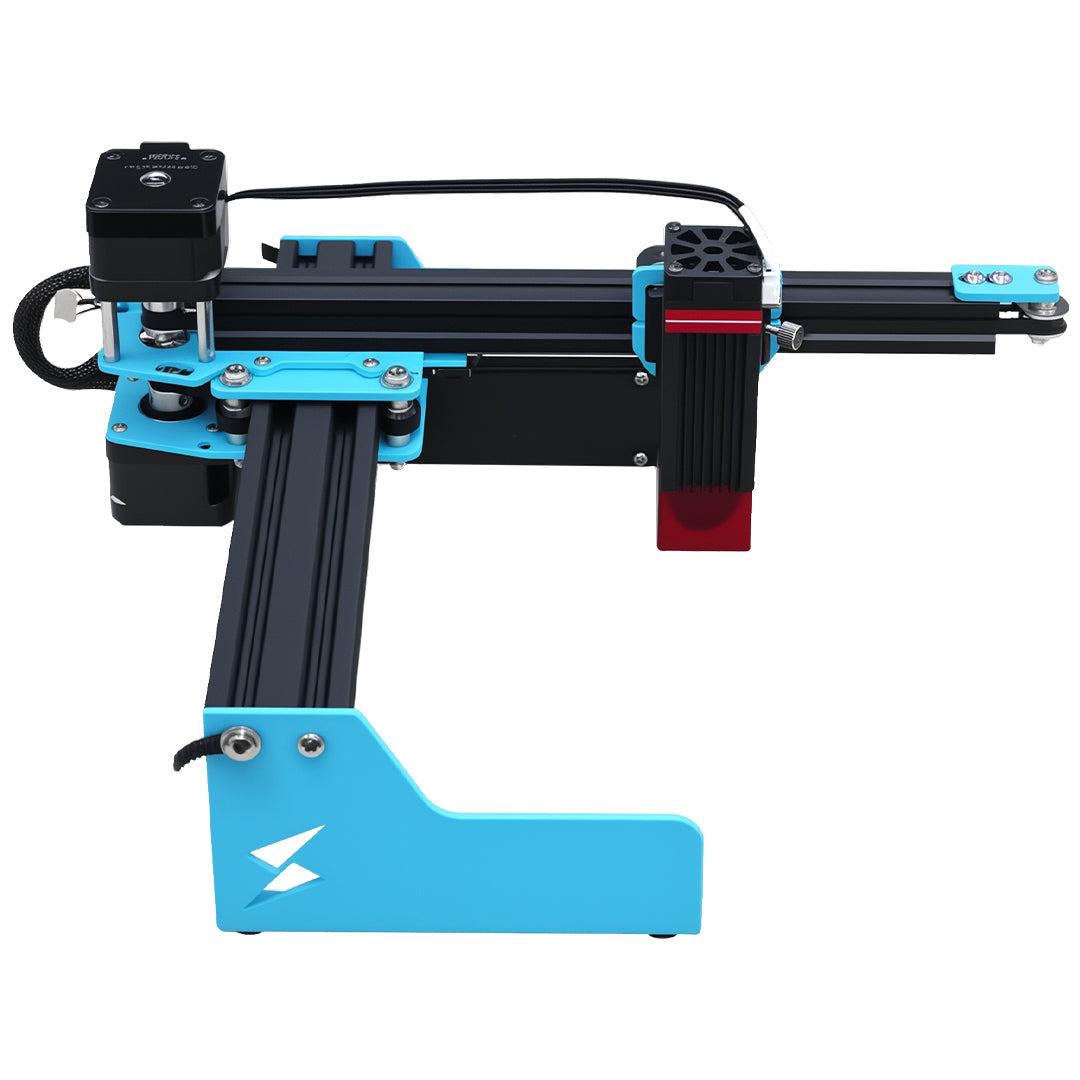
The TYVOK X1S 2026 page describes an 800 × 800 mm starting area and an 800 × 2000 mm expansion path. Confirm the actual installed configuration, supported software and safe material handling before assigning a sheet. Quick Nest is a LightBurn 2.1+ feature, not evidence that a license or version ships with every machine. Qualify material and spacing through the documented supervised process.
Does Lock Inner Objects set cutting order?
No. It keeps interior geometry associated during nesting. Inspect the final operation sequence separately; a visually correct arrangement can still have an unsuitable cutting order.
Can I use this to nest unsupported acrylic?
No. Geometry preparation does not establish wavelength or material compatibility. Accept the exact stock before scheduling any powered work.
Check the machine before buying
For the material and workflow discussed above, review TYVOK X1S 2026 configurations and purchase options after testing the exact project materials and setup.