

Read the macOS version named in the warning before changing a working LightBurn installation. A notice about a future operating system does not mean the application has stopped working on today's workstation. Check the Mac's chip, its installed macOS version and the applicable LightBurn release before planning an upgrade.

A recent Mac user question asks whether a compatibility message means LightBurn cannot run on the newest system. For the actual transition, use LightBurn's official compatibility notice rather than a guessed date or version in a reply.
What the notice actually concerns
The vendor notice specifically discusses macOS 28 and the transition away from relying on Rosetta for its Intel builds on Apple silicon. It says the warning alone requires no immediate action on the current setup and describes compatible builds planned for that transition. It identifies LightBurn 2.2.00 or later for the affected future combination; that statement is not evidence that a particular release is available to install today.
Check About This Mac to identify the chip and installed operating system. Then check the application's version and the official release information for the combination you intend to use. LightBurn's notice distinguishes Intel Macs from M-series Macs, so an answer for one should not be copied automatically to the other.
Before changing an X1S Pro workstation
| Record | Why it matters to the next job |
|---|---|
| Current Mac chip and macOS | Identifies the actual compatibility question |
| Installed LightBurn version | Establishes the working baseline |
| Proposed OS and app versions | Makes the planned change specific |
| Update entitlement | Determines access to a required newer release |
| Known-good project and sample | Allows a practical comparison after setup |
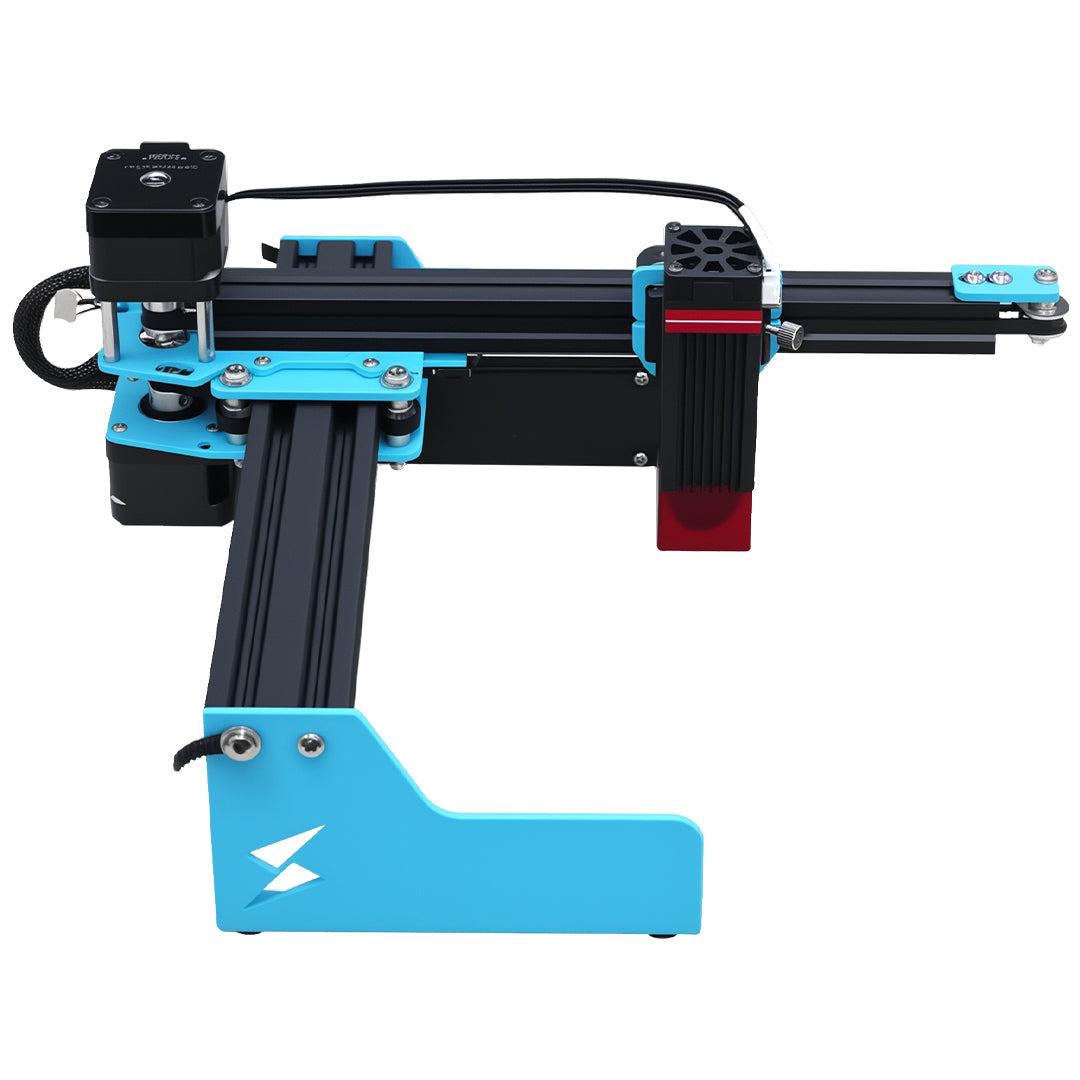
The TYVOK X1S Pro is a large-format diode machine with LightBurn workflow support. Its 800 × 2000 mm format does not determine whether a particular Mac/application combination is supported. Treat the computer setup and the machine setup as two parts of the same production process.
Schedule a change you can validate
Keep a copy of the working project and record its expected result before changing the workstation. Plan enough time to reopen the job, inspect settings and verify the supported machine connection before the next customer deadline. A successfully installed application is only the beginning of that check.
After an application update, compare the actual travel order in the job preview before a controlled sample. Keep any altered setup notes beside the sample so another operator can distinguish the old process from the approved new one.
If a current dialog is clipped, diagnose the offscreen confirmation control separately before attributing it to a future macOS transition.
Does the warning mean I must renew my license immediately?
The warning itself is not an instruction to purchase immediately. Check whether your planned operating-system change requires a newer LightBurn release and whether your update entitlement covers that release. Use the vendor's current terms for that decision.
Does this Rosetta transition affect an Intel Mac too?
The vendor's notice says Intel-based Macs are unaffected by this particular transition and that Intel builds will continue for the foreseeable future. That is not a promise of compatibility with every future operating system; check the supported combination before changing the workstation.