

After a LightBurn update, compare a preserved production job's previewed sequence and a controlled physical sample before using the new version for the full run. Unchanged artwork does not prove unchanged travel order, and a shorter estimated time does not prove that the intended manufacturing sequence is preserved.

A LightBurn 2.1 forum request about preserving original cut order describes a user's concern that changed optimization altered an intentional sequence and increased runtime. That is a reported experience, not confirmation of a universal software defect. It does not establish that a switch exists to reproduce every older sequence.
Keep a usable before-and-after record
Preserve the original job without overwriting it. Record the old software version, device profile, relevant settings and previously accepted sequence evidence if available. Open a separate copy for the new version and note exactly which version you are testing. If there is no old preview or measured run, say so in the comparison instead of reconstructing the baseline from memory.
The official LightBurn optimization documentation explains that its cut planner uses optimization variables to decide order and pathing, and that saved project files contain optimization settings. Check the values loaded with this particular file. Do not assume the application's last visible settings describe every reopened project.
Compare the same artwork and placement first. Identify the specific sequence that matters: for example, an internal feature must be completed before the surrounding part is released. Inspect that relationship in the preview and record any new long moves. Keep necessary manufacturing order separate from preferences that have no effect on the finished piece.
X1S Pro update acceptance record
| Comparison point | Evidence needed before a full run |
|---|---|
| Job identity | Preserved original and separately named test copy |
| Version and settings | Recorded values for the compared runs |
| Required sequence | Critical operations occur in acceptable order |
| Travel and time | Preview observation plus measured sample time |
| Finished sample | Appearance and fit remain acceptable |
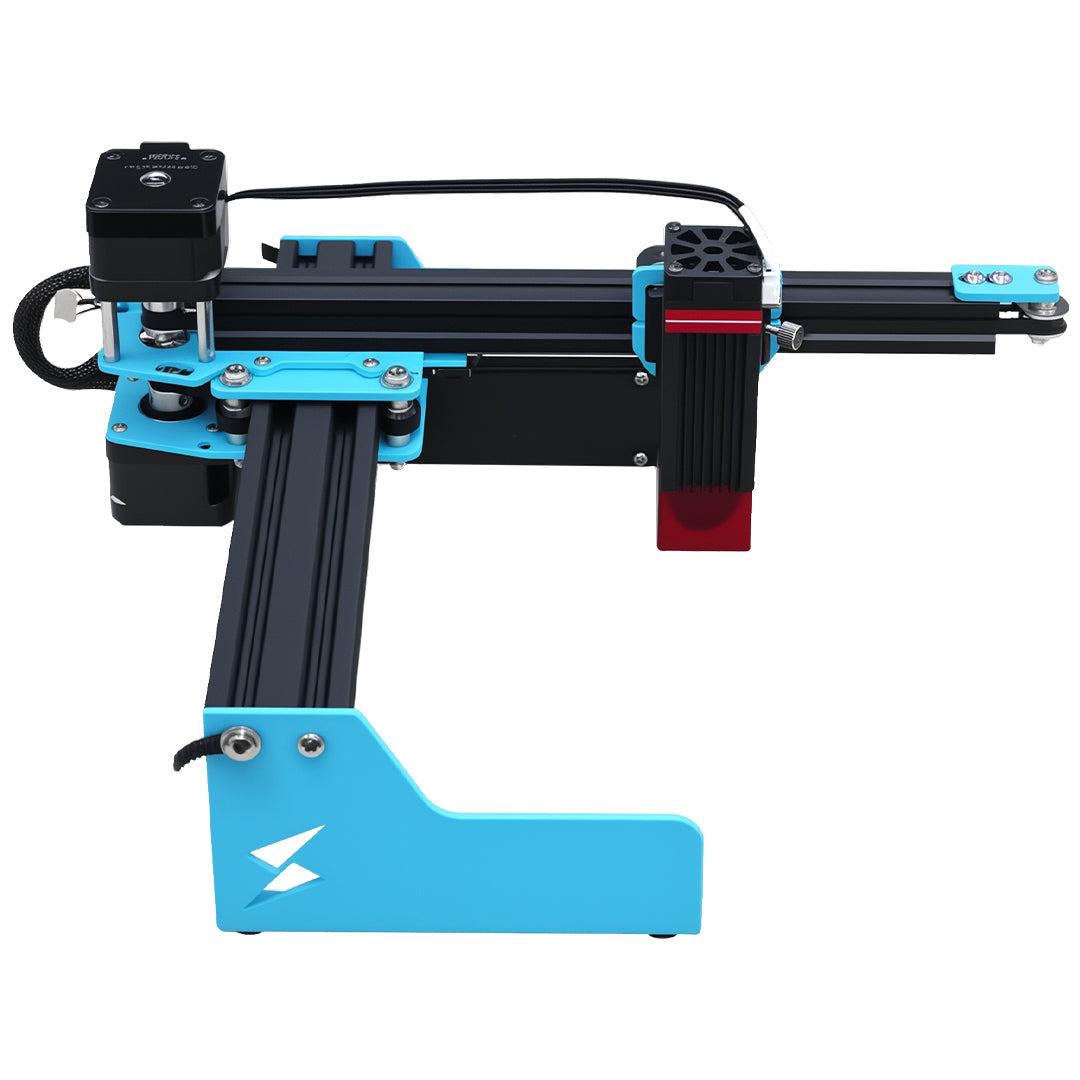
The TYVOK X1S Pro page lists LightBurn support and an 800 × 2000 mm large-format workflow. It does not guarantee unchanged optimizer behavior across software releases. Use a safely configured, attended sample on approved material to determine whether the new result satisfies this particular job.
Measure elapsed time consistently using the sequence time-study approach. Do not include loading in one trial and exclude it in the other. If a documented setting change is tested, retain a separate comparison so its effect is distinguishable from the version change.
Should I downgrade immediately if the preview looks different?
First identify whether the difference breaks a required sequence or merely rearranges acceptable operations. Preserve files and follow official version-compatibility guidance before any downgrade; do not assume newer files and older versions are interchangeable. A reproducible example is useful when contacting support.
Can I compensate for loose mechanics by choosing another travel order?
Mechanical play needs appropriate inspection and repair, not concealment through order changes. Likewise, if the laser itself changed, perform a separate machine-transfer test. Keep the update comparison tied to stable equipment so the result answers the software question.