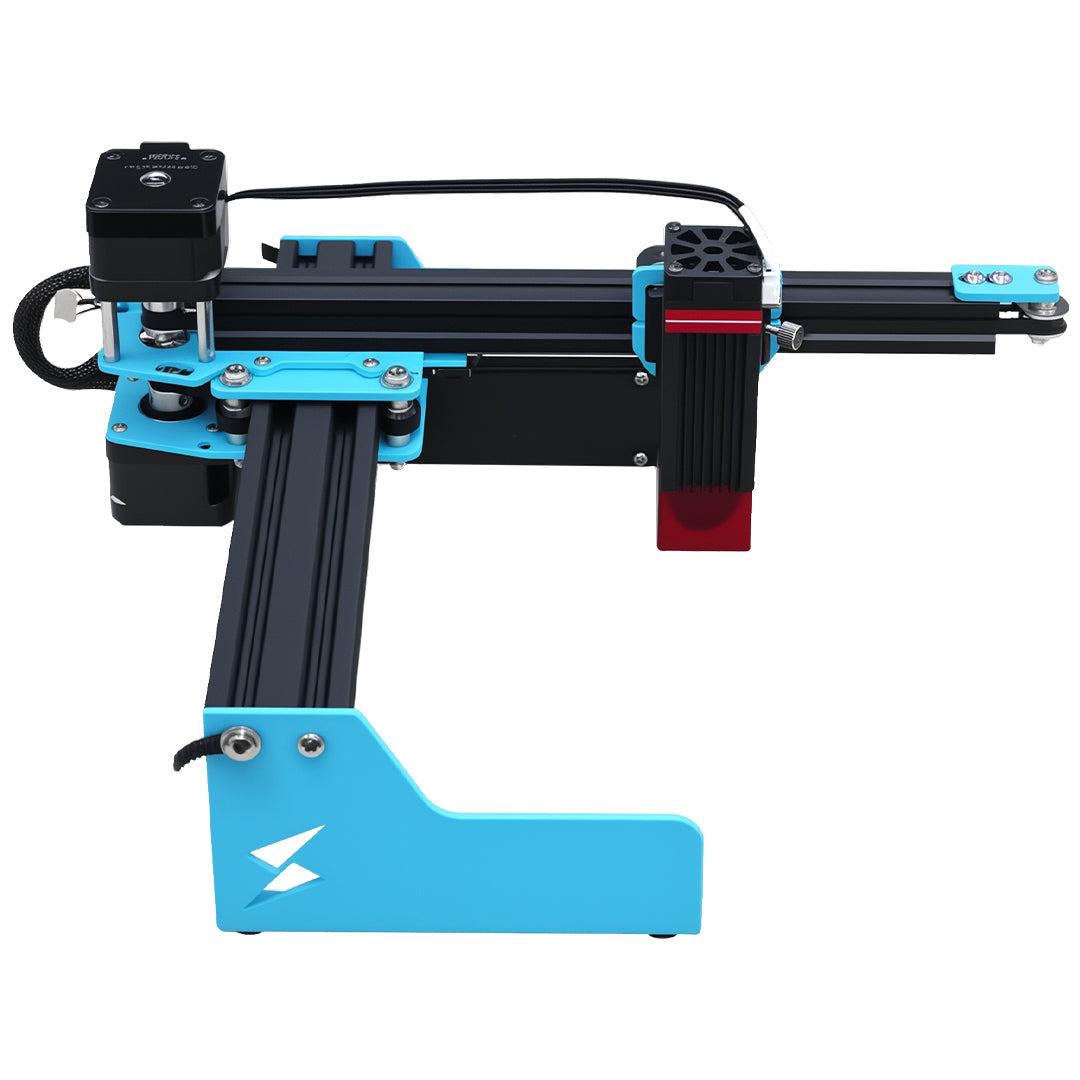


Short answer: Use this page as a starter test grid for TYVOK X1S 10W. Confirm software units, material supplier, focus, air assist, and cleanup before using any setting for customer work.

TYVOK X1S 10W starter settings table
| Material | Starter speed | Power | Passes | Test note |
|---|---|---|---|---|
| Basswood plywood engraving | mm/min test grid | Medium | 1 | Use faster engraving tests than cutting tests. |
| Wood sign lettering | mm/min test grid | Medium | 1 | Check contrast after cleaning dust and residue. |
| Pine or softwood sample | mm/min test grid | Low to medium | 1 | Softwood grain can darken unevenly. |
How to use this test grid
Start with scrap from the same supplier and thickness. Change only one variable at a time, then save the tested speed, power, passes, photo, material source, and cleanup note. Keep cutting and engraving settings separate.
When to choose a different TYVOK path
If the job changes from compact marking to large-format cutting, or from diode work to clear acrylic, move to the machine family that fits the material path instead of forcing one preset across different laser types.
Related compact laser settings to compare next
These crawled TYVOK settings pages help compare compact P2 leather marking and P2 Ultra metal marking against larger machine workflows.
Related TYVOK settings to compare next
These related TYVOK settings pages connect compact P2, P2 Ultra metal marking, X1S diode work, X1S Pro production planning, and K1 Pro CO2 acrylic workflows.